Is there a Chromecast browser? How to open a website on Google TV
2026-10-10
This post contains affiliate links. As an Amazon Associate, ZAGO.TO earns from qualifying purchases.
Is there a Chromecast browser, or do you have to give up and watch the page on your laptop?
The honest answer depends on which Chromecast is behind your TV. The older dongles have no browser at all.
The Chromecast with Google TV and the Google TV Streamer have no browser built in either, but they can run one.
Here are the three roads, from the one that needs nothing installed to the one that needs the most typing.
Contents
- Which Chromecast do you have?
- Cast a tab from your laptop
- Install a browser on Google TV
- Get a long address onto the TV
1. Which Chromecast do you have?
▲ The remote in your hand tells you which road you are on
If your Chromecast came with a remote control, it runs Google TV. You get a home screen, an app store and apps, so a browser is possible.
If it has no remote and you control it only from your phone, it is a casting receiver.
It plays what another device sends. There is nothing on it to install, so the browser has to live on your laptop or phone.
2. Cast a tab from your laptop
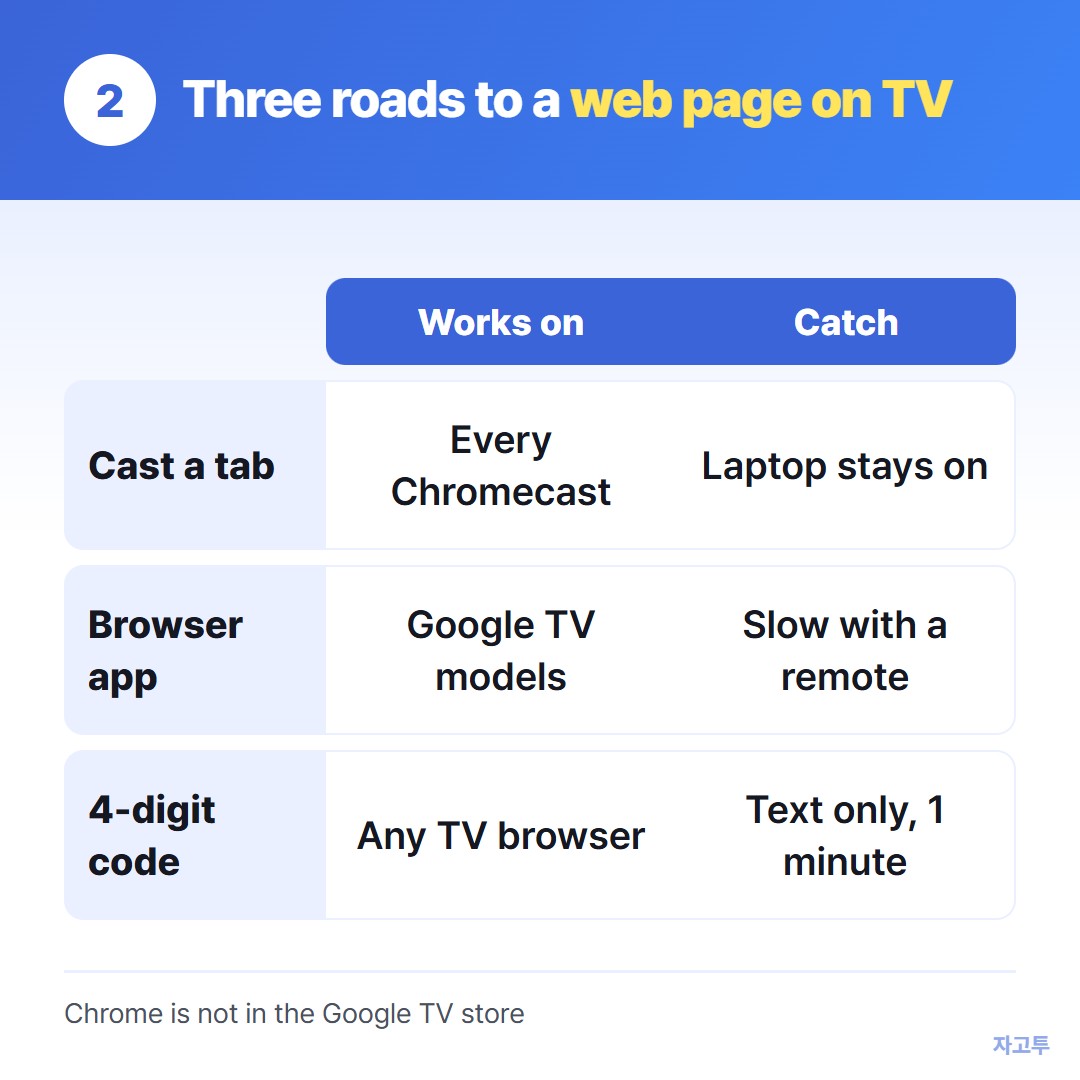
▲ Casting works on every Chromecast, with or without a remote
This works on every model. Open the page in Chrome on your laptop, open the three-dot menu, choose Cast, then pick Cast tab under Sources and select your Chromecast.
The TV now mirrors that tab. You scroll and click on the laptop, and the TV follows.
The catch is that your laptop has to stay on and nearby. Close the lid and the picture stops. Video inside a cast tab can also stutter, because the laptop is doing the work.
3. Install a browser on Google TV
On a Chromecast with Google TV, open Apps, search for "browser" and install one from the store.
Several free browser apps are listed there, and reviews will tell you which ones handle a remote well.
Chrome itself is not offered in the Google TV store.
The popular videos that put Chrome on Google TV do it by sideloading, which means installing an app file from outside the store.
That is your call to make, but an unknown file on the device that holds your streaming accounts is a real risk.
Browsing with a remote is slow. Turning your phone into a keyboard helps, since the Google TV app on your phone has a remote with a keyboard.
The other ways are in How to type on a smart TV without the remote.
4. Get a long address onto the TV
Short searches are fine by voice. A long address with slashes and random letters is where the remote, and even voice, falls apart.
One shortcut is ZAGO.TO. Paste the address on your phone or laptop and you get 4 digits.
Open zago.to in the TV browser, type those four numbers with the remote, and the address appears ready to copy or open.
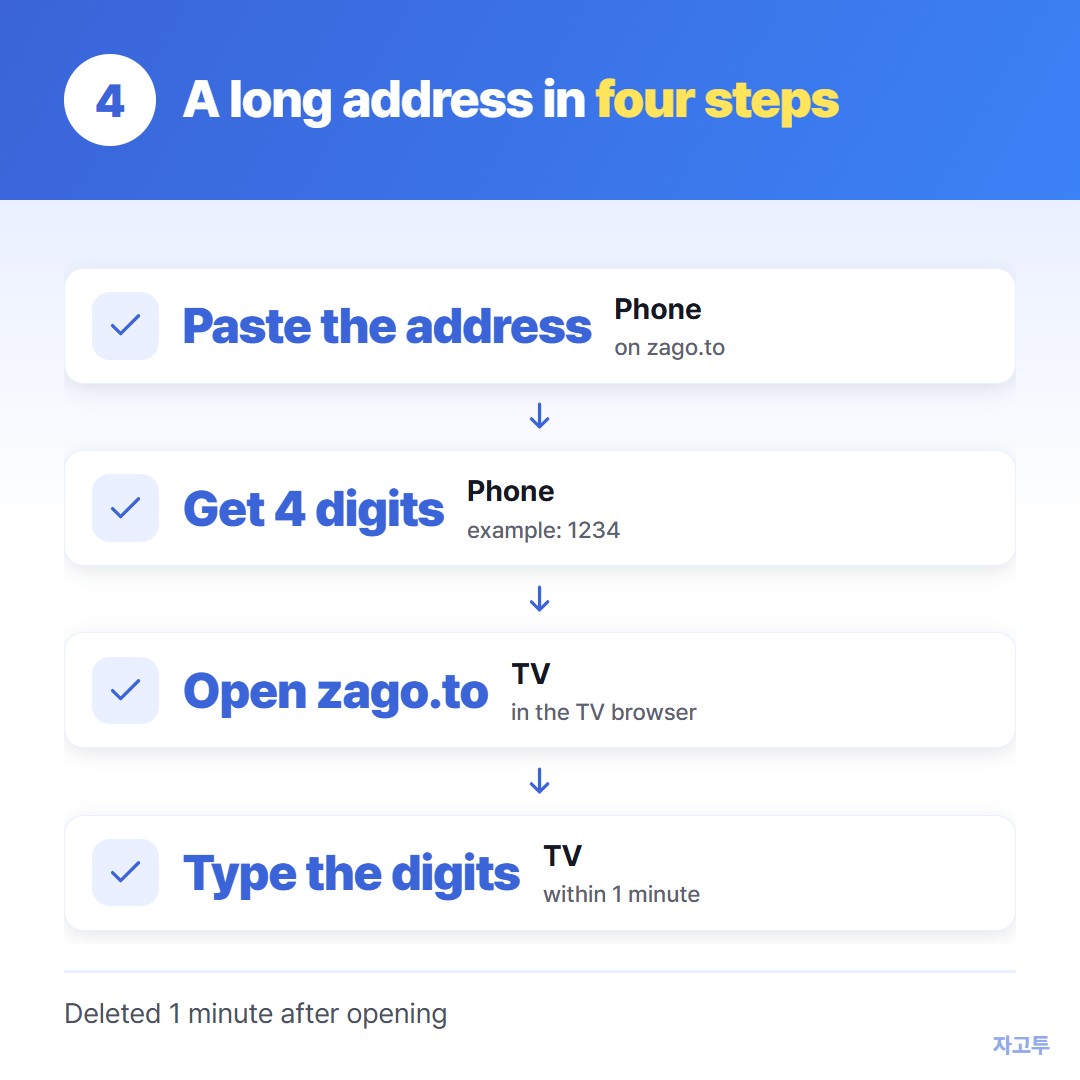
▲ Four digits are easier on a remote than forty characters
It has limits worth knowing before you rely on it. It carries text only, up to 10,000 characters, never files.
If nobody opens it within 1 minute it is deleted, and once opened it stays 1 minute more, so you cannot pull it up again tomorrow.
There is no in-browser encryption yet, so our server can read what you send. Keep passwords off it.
If what you want is a video link rather than a web page, Send link to TV from your phone is a better fit, because the app can often take it directly.
Which one, in one line
No remote means cast a tab. A remote means you can install a browser. A long address means move it as text instead of typing it twice.