Git Bash copy paste: why Ctrl+V types ^V, and the three keys that work instead
2026-10-21
This post contains affiliate links. As an Amazon Associate, ZAGO.TO earns from qualifying purchases.
You copy a clone URL from the browser, click into Git Bash, press Ctrl+V, and the prompt shows a small ^V with nothing pasted. Press it twice and you get two of them. The URL is still on the clipboard. The window is simply not listening for Ctrl+V.
Git Bash copy paste runs on different keys from the rest of Windows, because the window is a terminal called mintty, and inside it the shell gets the keystrokes first.
This post covers the keys that do work, the setting that makes Ctrl+V work if you want it, and what to do when the text has to come from a phone.
Contents
- Why Ctrl+V types ^V in Git Bash
- Git Bash copy paste: the three keys that work
- Making Ctrl+V and Ctrl+C work anyway
- When the text is on your phone
- Checklist
1. Why Ctrl+V types ^V in Git Bash

▲ The ^V is bash telling you it received a control character, not a paste
Git Bash on Windows opens in mintty. Mintty passes Ctrl+V straight to bash, and bash reads it as quoted-insert: a command that means "take the next key literally". So the first Ctrl+V waits, the second one prints ^V, and nothing is pasted.
Ctrl+C is the same story in reverse. In a terminal it means interrupt the running command, which is why pressing it to copy a line sometimes kills whatever was running.
Nothing is broken. The window is a terminal first and a Windows app second.
2. Git Bash copy paste: the three keys that work
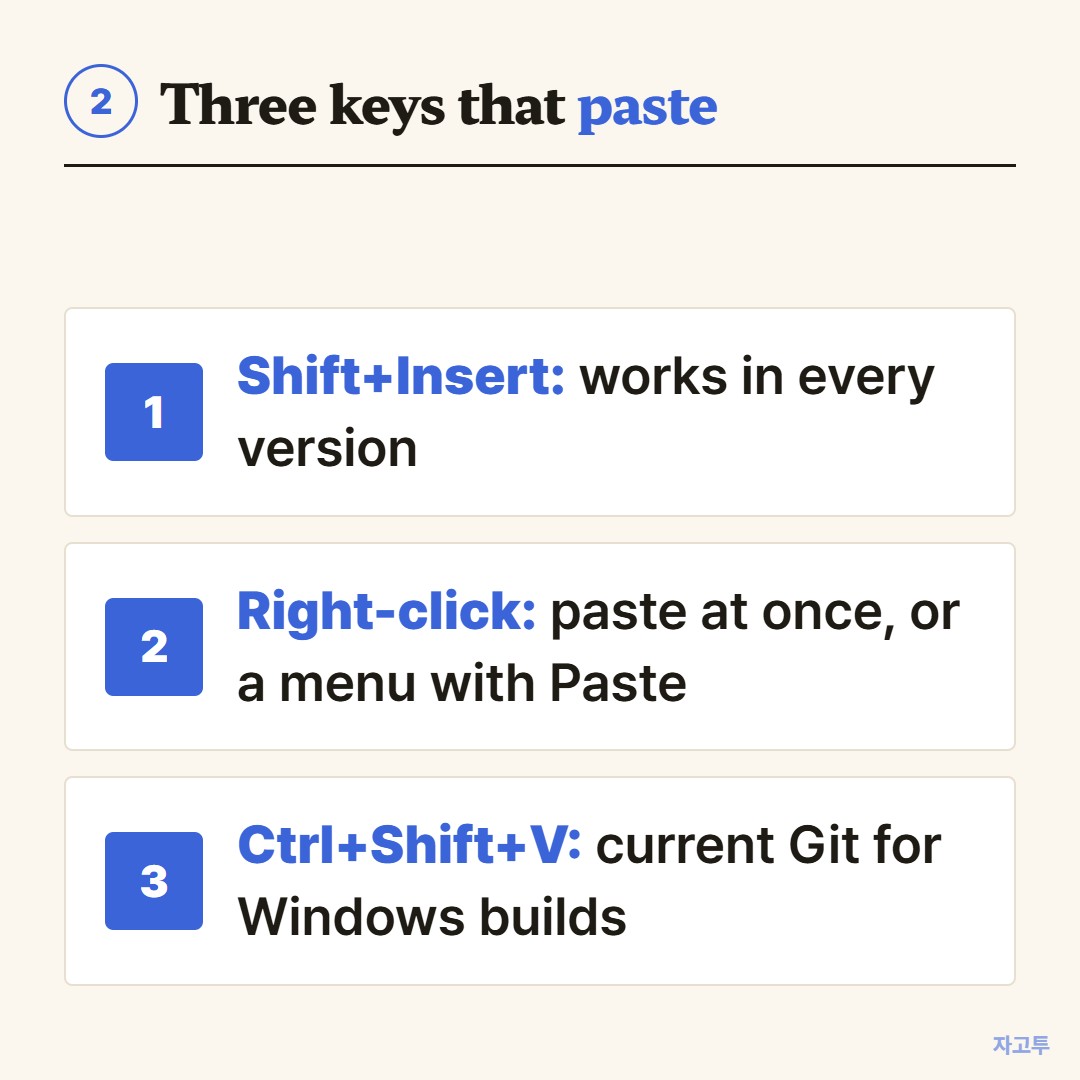
▲ Any one of these pastes the clipboard at the cursor
- Shift+Insert. Pastes in every mintty version. On a laptop without an Insert key, use the next two.
- Right-click. Depending on the version, the right mouse button either pastes at once or opens a short menu with Paste on it. Either way it is one click.
- Ctrl+Shift+V. Pastes on current Git for Windows builds. Ctrl+Shift+C copies the selection.
Copying is easier than pasting: select text with the mouse and it is already on the clipboard. Mintty copies on selection by default, so there is no copy step at all. Ctrl+Insert copies too.
If you work in the Linux terminal as well, the same Ctrl+Shift pair is explained in How to copy and paste in the Linux terminal. Over an SSH session the keys belong to whichever terminal you are sitting in, which SSH copy paste: why Ctrl+V does nothing in the terminal walks through.
3. Making Ctrl+V and Ctrl+C work anyway
If you would rather keep the Windows habit, mintty has a switch for it.
Right-click the title bar of the Git Bash window and choose Options, then Keys. Tick Ctrl+Shift+letter shortcuts if it is off, and look at the copy and paste shortcut options on the same page. Save, and Ctrl+Shift+C and Ctrl+Shift+V are guaranteed. Some builds also offer plain Ctrl+C and Ctrl+V there, with the warning that Ctrl+C then stops interrupting commands.
The same settings live in a text file called .minttyrc in your home folder, one option per line, if you want to carry them to another PC.
Two other routes skip the problem:
- Windows Terminal. Add Git Bash as a profile and Ctrl+V pastes like everywhere else in Windows, because Windows Terminal handles the clipboard before the shell sees the key.
- VS Code. Git Bash inside the integrated terminal also takes Ctrl+V.
4. When the text is on your phone
Sometimes the string you need is not on the clipboard at all. It is in a message on your phone: a repository URL a colleague sent, a long command from a chat, a branch name.
Typing a 60-character URL from a phone screen into a terminal is where the one wrong character happens.
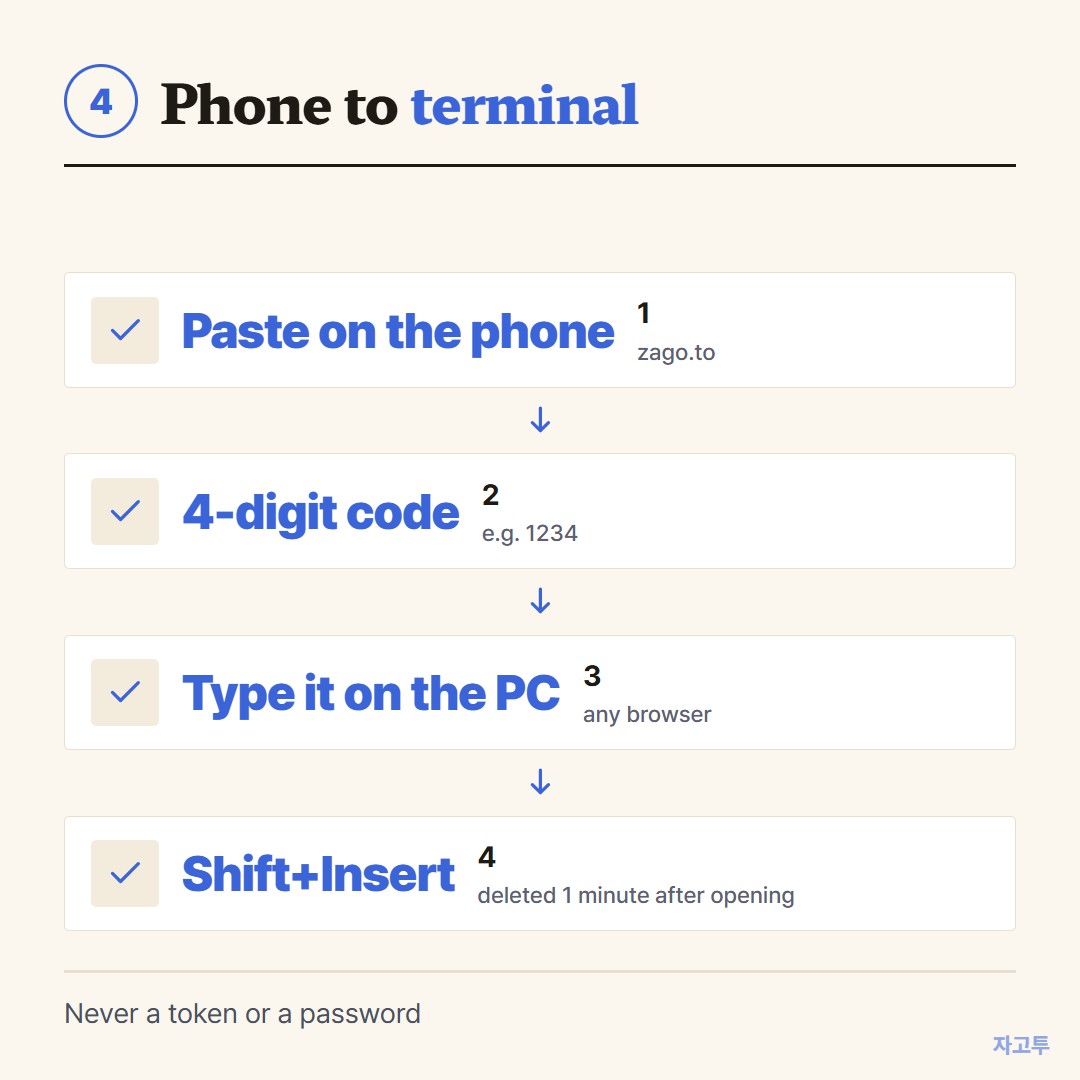
▲ Paste on the phone, type four digits on the PC, then Shift+Insert
ZAGO.TO moves the text in the browser on both sides. Paste the line on the phone, get a 4-digit code, open zago.to on the PC, type the digits, copy, and Shift+Insert in Git Bash. No account, nothing installed.
Two limits matter here. ZAGO.TO is text only, up to 10,000 characters, and the text is deleted 1 minute after it is opened, or after 1 minute if nobody opens it. It cannot be reopened, so have the terminal ready.
And one rule: never move a token, a password or a private key this way. Our server can read what passes through, since in-browser encryption is not built yet. A clone URL or a command is fine. A personal access token is not.
5. Checklist
- Ctrl+V printed ^V: press Shift+Insert, right-click, or Ctrl+Shift+V instead
- Need to copy: select with the mouse, it is already copied
- Want Windows keys: Options, Keys, turn on the shortcut switches, or run Git Bash inside Windows Terminal
- Text is on the phone: four digits at zago.to, then paste in the terminal
- Token or password: type it, do not move it through any clipboard site