Clipboard manager for Windows: what the built-in one does, and when people add another
2026-10-20
This post contains affiliate links. As an Amazon Associate, ZAGO.TO earns from qualifying purchases.
Windows already ships a clipboard manager. Press Win + V. Most people only go looking for another one after they hit one of three walls: the history vanished after a restart, they needed to search old clips, or the text had to reach a phone.
If you searched for a clipboard manager for Windows, you probably copied something important, copied something else on top of it, and lost the first one.
That is the problem every clipboard manager solves. The question is how far you need the fix to go.
What the built-in clipboard manager in Windows 11 does

▲ Win + V opens a small panel of recent clips right where you are typing
Turn it on once in Settings, System, Clipboard, under Clipboard history. After that, Win + V shows a list of recent clips. Click one and it pastes.
The short version of what it keeps:
- About 25 recent items. Text, small images and some HTML. Older ones drop off the bottom
- Pins survive a restart. Everything not pinned is cleared when the PC restarts
- Plain text pasting. The three dot menu on a clip, or Ctrl + Shift + V in many apps, drops the formatting
The full rules, including the size limit and how to clear it, are in Windows clipboard history.
This post is about the next step: when that panel stops being enough.
Built-in or third party: where each one fits
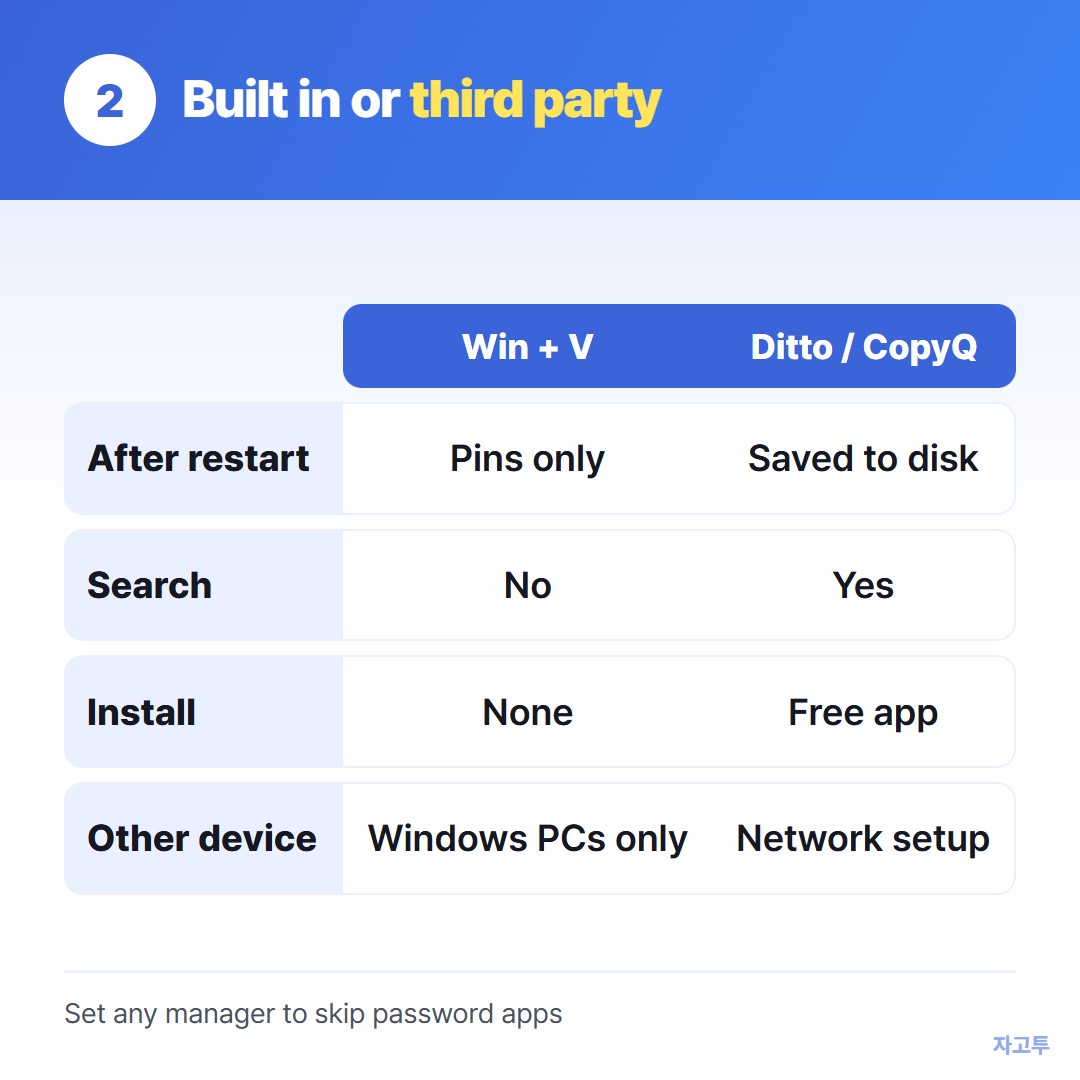
▲ Pick by the wall you actually hit, not by the longest feature list
The common free picks on Reddit threads and YouTube roundups are Ditto and CopyQ. Both are well made and both have been around for years. Here is where they do more than Win + V:
- History that lasts. They save clips to disk, so last Tuesday's address is still there after a restart
- Search. Type two words and find a clip from hundreds back. Win + V has no search box
- Shortcuts and groups. Paste your five most used replies with their own keys
That extra power has a cost worth naming.
A manager that keeps everything also keeps the password you pasted once, the card number from a checkout page, the one time code.
If you install one, set it to skip password managers and clear old items on a schedule.
The is the clipboard safe post goes through what can read your clipboard.
If your problem is formatting rather than memory, Microsoft's free PowerToys has an Advanced Paste tool that pastes as plain text or Markdown without installing a full manager.
The wall none of them fix on their own: another device
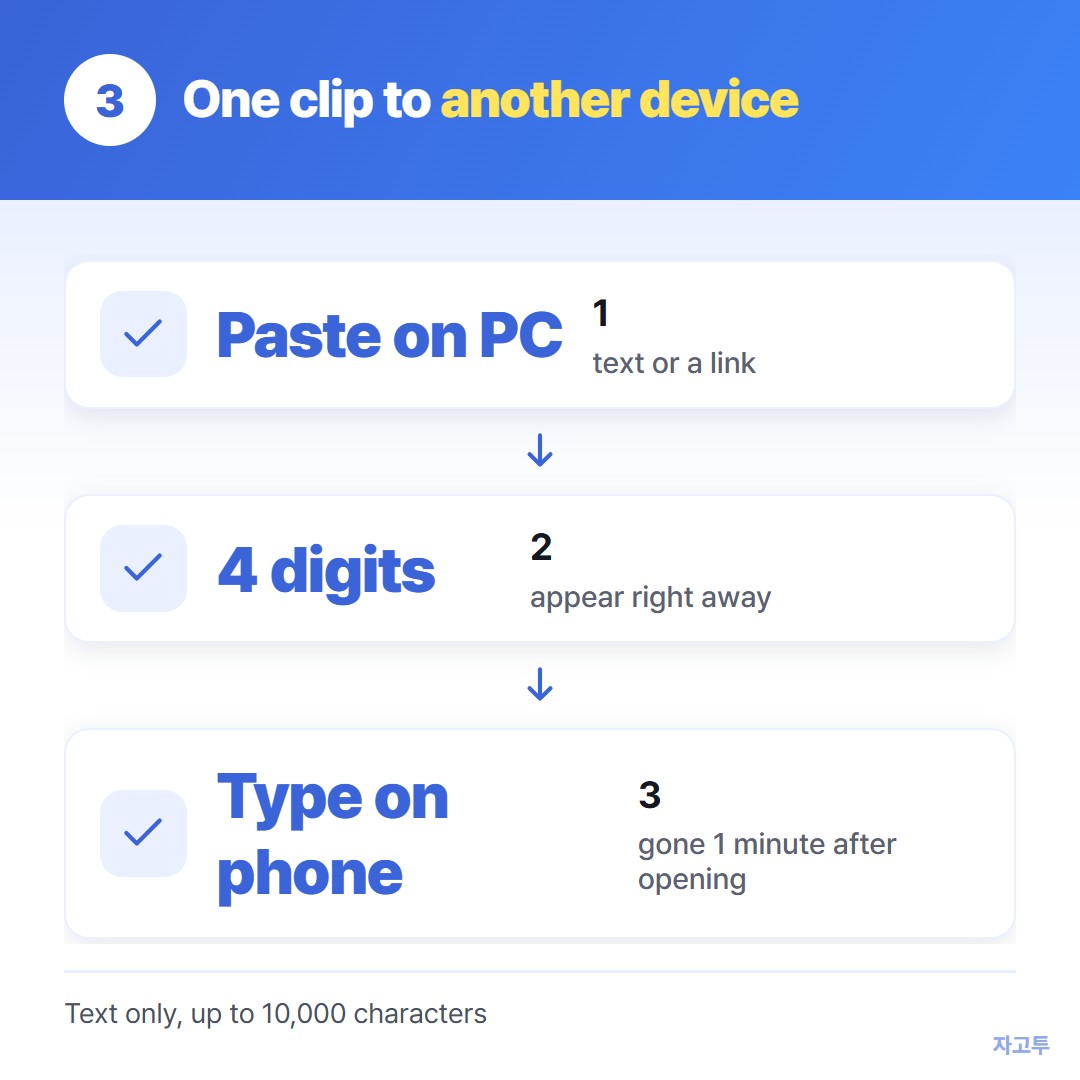
▲ The phone only needs the 4 digits
Windows can sync clipboard history to other Windows PCs signed in to the same Microsoft account. Ditto can sync between computers on a network if you set it up.
Neither gets a long paragraph onto a friend's iPhone or a borrowed laptop.
For that single hop, ZAGO.TO works without installing anything. Paste the text on the PC, get a 4-digit code, type it at zago.to on the other device, and the text appears there.
It is a narrow tool, so here is what it does not do.
It carries text and links only, up to 10,000 characters, no files or images.
The text is deleted 1 minute after it is opened, or after 1 minute if nobody opens it, and it cannot be opened again.
There is no in-browser encryption yet, which means the server can read what you send. Keep passwords and keys out of ZAGO.TO, the same rule as for any clipboard history.
In three lines
- Win + V is a real clipboard manager. Turn it on first and pin what you reuse
- Add Ditto or CopyQ when you need history that survives restarts, plus search, and set them to skip sensitive apps
- For getting one clip to a different device, a short code is quicker than syncing a whole history
 Days until Christmas
 Word Counter
 Age Calculator
 Wheel Spinner