Wi-Fi QR code generator: let guests join without reading the password aloud
2026-10-25
This post contains affiliate links. As an Amazon Associate, ZAGO.TO earns from qualifying purchases.
A friend asks for the Wi-Fi. You flip the router over and squint at a 16-character password printed in grey.
You start reading it out: "capital K, lowercase x, the number zero, not the letter O." Halfway through, someone else asks.
A Wi-Fi QR code ends that. Guests point their phone camera at a small square, tap one prompt, and they are on the network.
A Wi-Fi QR code generator builds that square in a few seconds, and the code works for as long as the password stays the same.
This guide covers what is actually inside the code, the characters that break it, how big to print it, and what to check before you tape it to a wall.
1. What is inside a Wi-Fi QR code
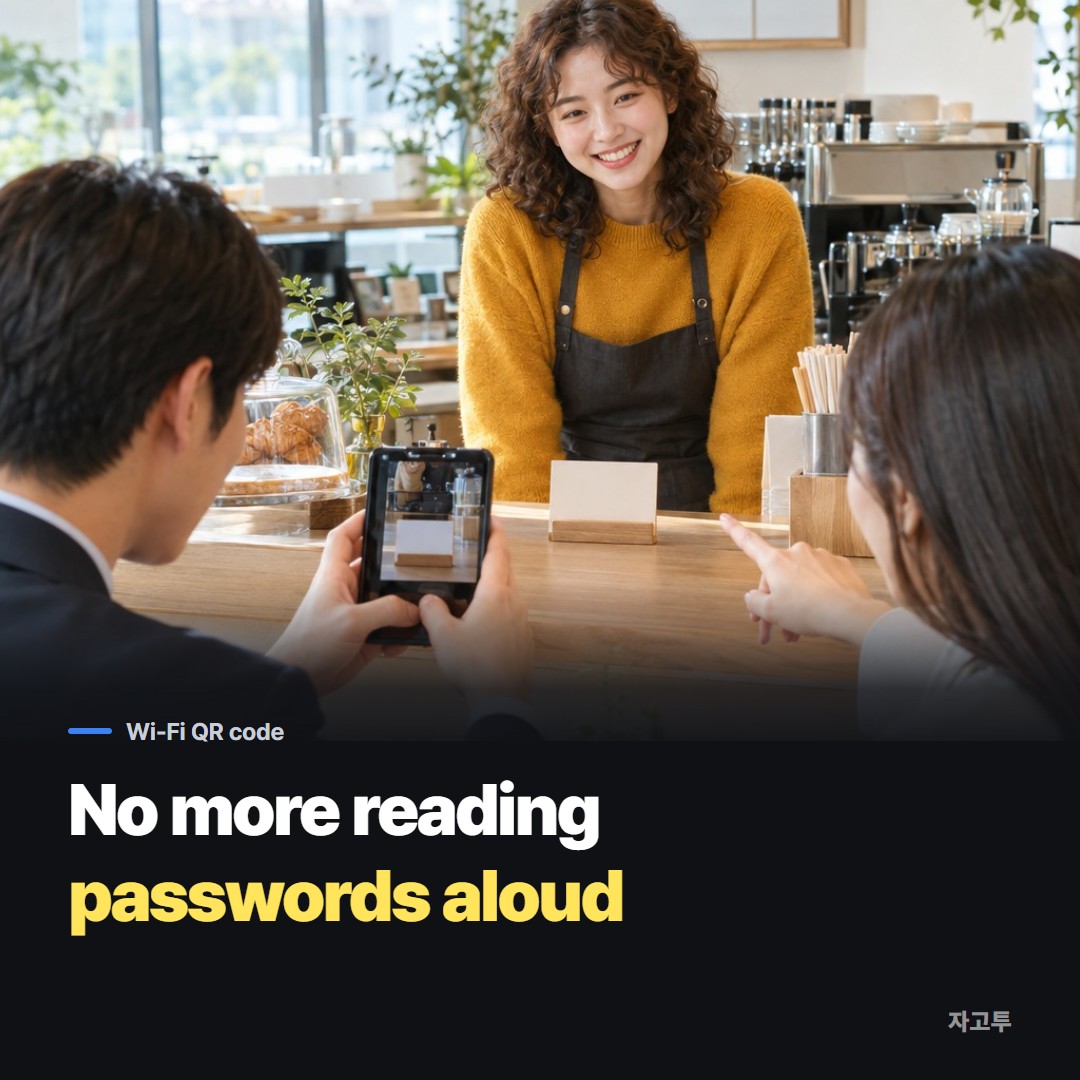
▲ The guest never sees or types the password
A Wi-Fi QR code is not a link. It holds one short line of plain text in a format phone cameras recognize:
`WIFI:T:WPA;S:CornerCafe;P:blue-teapot-42;;`
- T is the security type: `WPA` (which covers WPA2 and most WPA3 setups), `WEP` for very old routers, or `nopass` for an open network
- S is the network name (SSID), exactly as it appears in your phone's Wi-Fi list
- P is the password
- H:true can be added for a hidden network that does not broadcast its name
- The line ends with two semicolons
When a camera reads this line, it does not open a website. The phone itself offers to join the network.
Nothing is fetched from the internet, which is why a Wi-Fi QR code keeps working forever and works even when the guest has no mobile data.
That also means the code is only as current as the password inside it. Change the router password and every printed card stops working. You will need to make and print a new one.
2. The characters that quietly break it
Most failed Wi-Fi codes come down to one character. The format uses `;`, `:` and `,` as separators, so if your network name or password contains them, the phone reads the line wrongly.
The fix in the standard is to put a backslash in front of those characters:
- Semicolon: `pass;word` becomes `pass\;word`
- Colon: `Home:5G` becomes `Home\:5G`
- Comma: `a,b` becomes `a\,b`
- Backslash and double quote: each gets its own backslash too
A good generator does this for you. If you are building the line by hand in a generic QR tool, this is where it goes wrong.
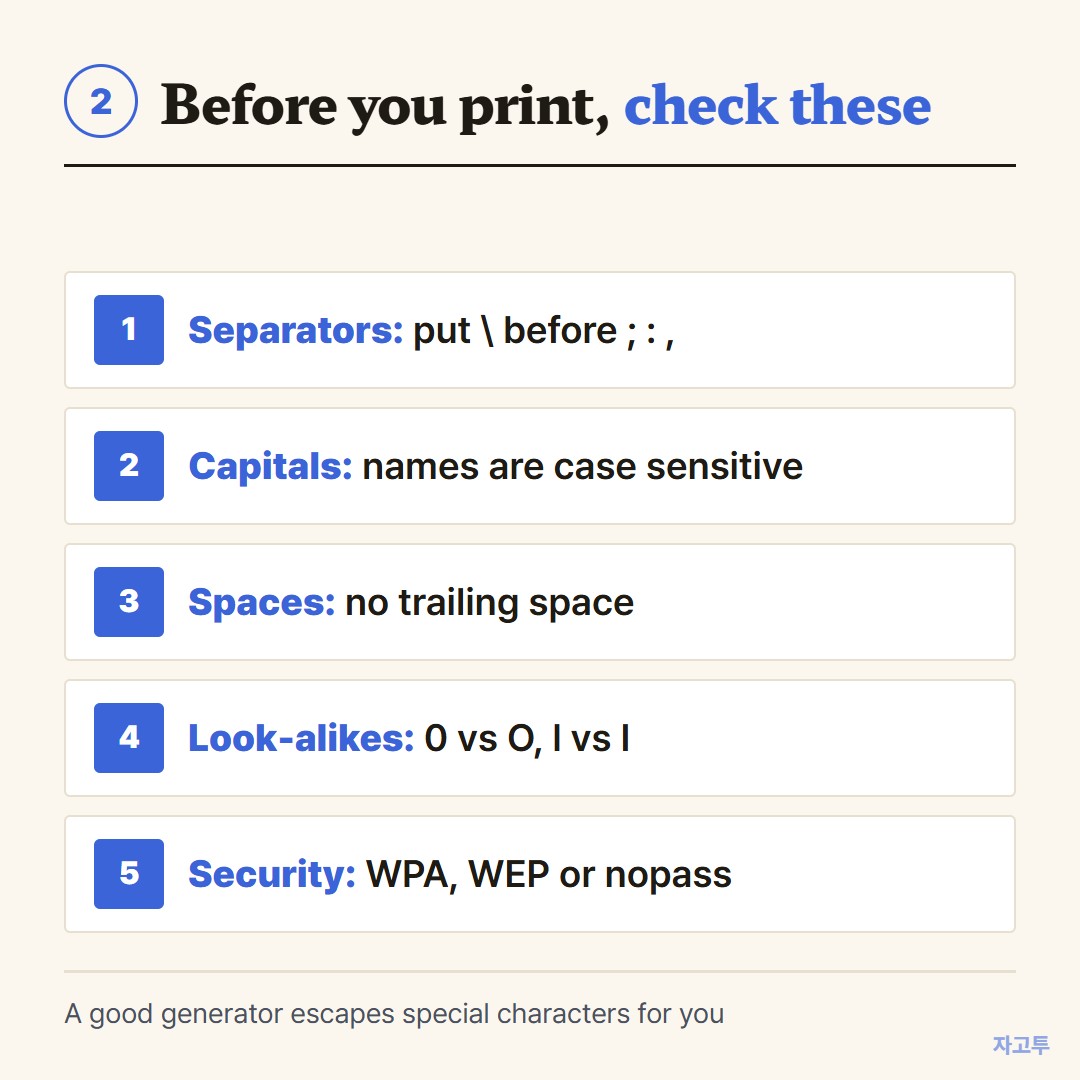
▲ Spaces, capitals and look-alike characters cause most of the rest
Three other things to check before printing:
- Exact capitals. Network names and passwords are case sensitive. `cornercafe` and `CornerCafe` are different networks to a phone
- Trailing spaces. A space copied at the end of a password counts as a character
- Look-alikes. Zero and the letter O, lowercase l and capital I. Copy the password from your router app instead of retyping it from the sticker
If guests scan and see "unable to join," a single wrong character is the first suspect.
We covered that case in detail in How to share a Wi-Fi password from an iPhone to a laptop that is not a Mac
That post also explains why laptops cannot scan these codes as easily as phones.
3. Which phones can scan it
Support is wide now, but not universal.
- iPhone: the built-in Camera app reads Wi-Fi codes on iOS 11 and later. A yellow "Join network" banner appears at the top
- Android 10 and later: the camera app or Google Lens reads them on most phones. On Samsung, the camera shows a small QR icon to tap
- Older Android: may need a separate scanner app
- Laptops: Windows and macOS do not scan Wi-Fi codes from a webcam out of the box. Laptop guests still need the password typed
Phones can also make these codes themselves.
On Android 10 and later, open Wi-Fi settings, tap the gear next to your network, and choose Share. On iPhone with iOS 18 or later, the Passwords app can show a QR code for a saved Wi-Fi network.
Those are fine for showing your screen to one person at a time. For a code that sits on a table all day, you want a printed one.
4. How big to print it
The rule of thumb for any QR code is that the code should be at least one tenth of the scanning distance.
- Table card, scanned from about 30 cm (12 in): at least 3 cm (1.2 in) wide
- Poster on a wall, scanned from 1 m (3 ft): at least 10 cm (4 in)
- Sign across a room, 3 m (10 ft): at least 30 cm (12 in)
Leave a white margin around the square at least as wide as four of the small modules.
Dark code on a light background scans best.
A Wi-Fi code with a long password packs more modules into the same space, so print a little larger than the minimum if your password is over 20 characters.
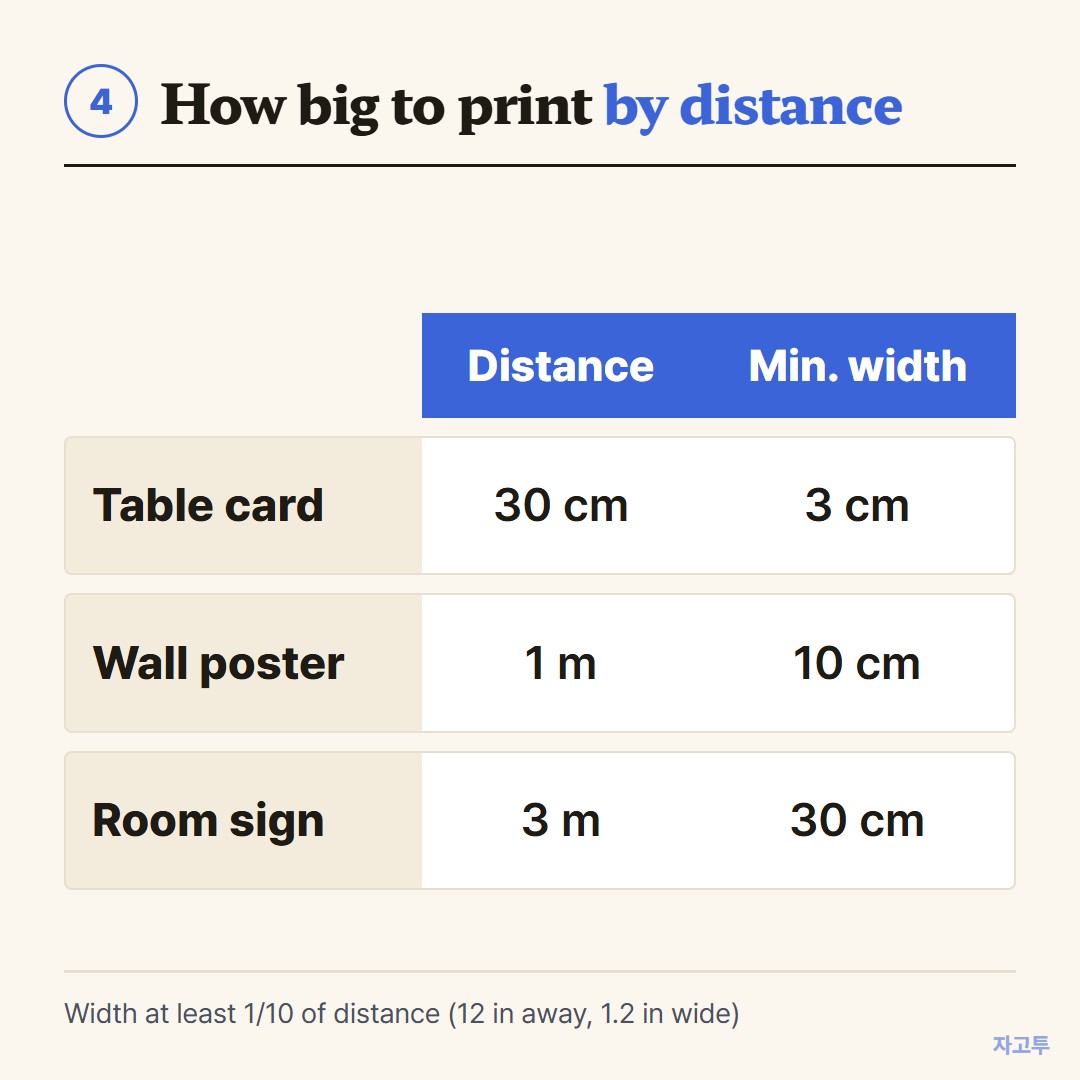
▲ When in doubt, print it bigger and test from where guests will stand
Matte paper beats glossy. Overhead lights reflecting off a laminated card are a common reason a code that worked on your desk fails on the counter.
5. Making one in the browser
The ZAGO.TO QR Code Generator has a Wi-Fi tab with three fields: network name, password and security type.
It escapes the special characters from section 2 for you and draws the code on the page as you type.
You can pick a color, add a logo, and download a PNG or SVG.
There is also a "Save as Wi-Fi table card" button.
It lays out the code with the network name underneath so guests know which network they are joining, sized for a small stand on a cafe table or office reception desk.
That button opens a sponsor page in a new tab first, then the card downloads in the original tab.
Things it does not do:
- No hidden network option. If your SSID is hidden, add `H:true;` in a general QR tool instead
- No editing after printing. The code holds the password directly, so a password change means a new card
- No scan count. There is no tracking link in the middle, so you cannot see how many people scanned it
6. Before you tape it to the wall
Anyone who can photograph the card can read the password out of it. Free decoder apps show the full `WIFI:` line. That is fine for a cafe, but think about it at an office.
A quick checklist:
- Guest network. Most routers can run a separate guest network. Put that one on the card, not the network your work laptops and printers use
- Test from two phones. One iPhone and one Android, from the spot where guests will actually stand
- Write the network name under the code. If the scan fails, guests can still pick the network and type
- Date the card. A small "updated October 2026" helps you notice which cards to replace after a password change
FAQ
Does a Wi-Fi QR code expire? No. It contains the password itself, not a link. It stops working only when the network name or password changes.
Can I make a Wi-Fi QR code without the password showing? The password is inside the code. It is not printed as text, but any QR reader can reveal it. Use a guest network if that matters.
Why does the scan say it cannot join? Usually a wrong character, a trailing space, or the wrong security type. Rebuild the code by copying the password straight from your router app.
To make your own card now, open the Wi-Fi QR code generator, choose the Wi-Fi tab and type your network name and password.
Other tools: Word Counter · Days Until
 Days until Christmas
 Word Counter
 Age Calculator
 Wheel Spinner