Vim copy to system clipboard: the + register, missing clipboard support, and SSH
2026-10-18
This post contains affiliate links. As an Amazon Associate, ZAGO.TO earns from qualifying purchases.

Why does `y` in Vim copy nothing you can paste into the browser?
Because a plain yank goes into Vim's own unnamed register, not the system clipboard.
To make Vim copy to system clipboard you need the `+` register, a Vim build that can reach the clipboard, and, over SSH, a different route entirely.
First, check whether your Vim can see the clipboard

▲ One command tells you which half of this post you need
Run this in a shell:
`vim --version | grep clipboard`
You will see either +clipboard or -clipboard. Inside Vim, `:echo has('clipboard')` answers the same question with 1 or 0.
If it says -clipboard, no register trick will work. The fix is a different Vim build, covered further down.
The + register: yank, paste, and the whole file
With +clipboard, prefix the usual commands with `"+`:
- Selected text: select with `v` or `V`, then type `"+y`
- One line: `"+yy`
- The whole file: `:%y+`
- Paste from the clipboard: `"+p` in normal mode
Linux has a second register, `"*`, which is the primary selection, the text you paste with a middle click. On Windows and macOS, `+` and `*` point at the same clipboard.
Tired of typing `"+` every time? Put this in your vimrc:
`set clipboard=unnamedplus`
After that, a plain `y` and `p` use the system clipboard. On macOS, `set clipboard=unnamed` is the common choice.
When your Vim says -clipboard
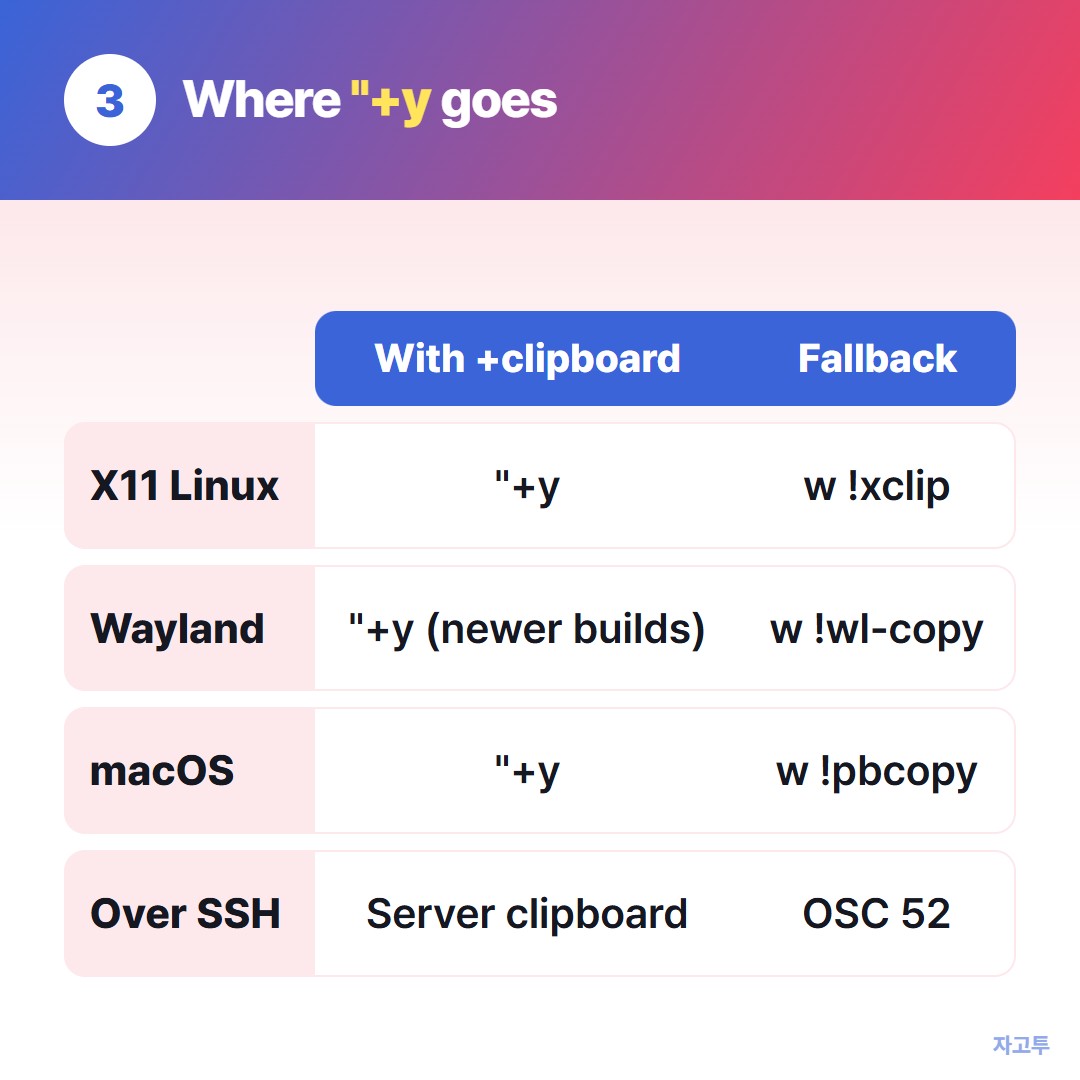
▲ The register is the same everywhere. What sits behind it is not
The default `vim` package on Debian and Ubuntu is often built without clipboard support. Installing `vim-gtk3` gives you a build with it, even if you never open the GUI.
On Fedora, the `vimx` command from the vim-X11 package does the same job.
On macOS, the Vim that ships with the system may lack it; Vim from Homebrew or MacVim includes it.
If you cannot install anything, pipe the selection to a clipboard tool instead. Select lines, then run one of these:
- X11 Linux: `:'<,'>w !xclip -selection clipboard`
- Wayland: `:'<,'>w !wl-copy`
- macOS: `:'<,'>w !pbcopy`
- WSL: `:'<,'>w !clip.exe`
On Wayland, a build that talks to X11 may only work through XWayland, so `wl-copy` is the dependable fallback. Neovim users can run `:checkhealth` to see which clipboard tool it found.
Vim copy to system clipboard over SSH: the wrong machine
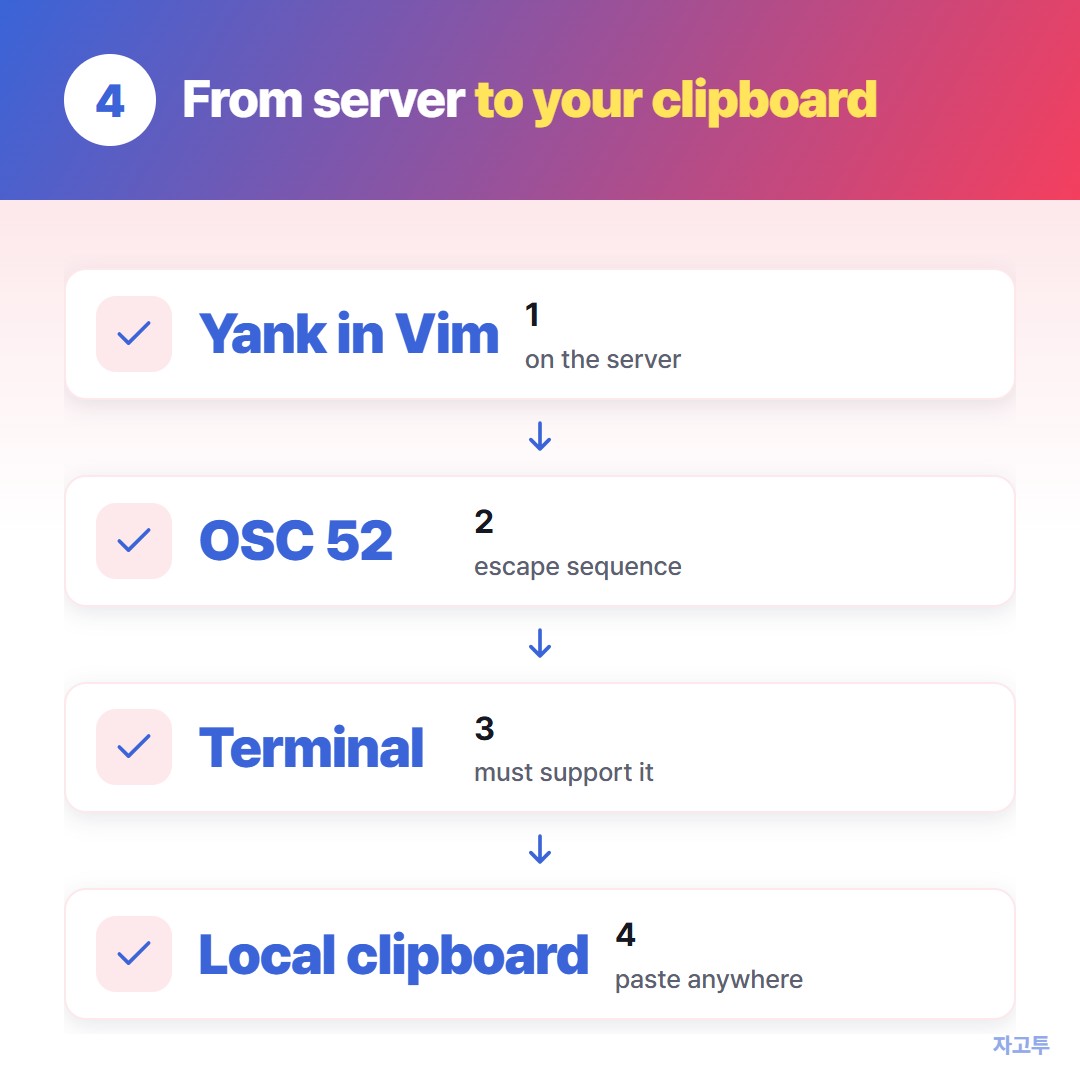
▲ OSC 52 lets the terminal, not the server, hold the copy
Here is the part that trips people up. When you run Vim on a server, `"+y` copies to that server's clipboard, which usually does not exist.
You have three ways back to your own computer:
- OSC 52. Your terminal accepts a special escape sequence and puts the text on your local clipboard. Your terminal must support it
- X11 forwarding. `ssh -X` plus a +clipboard Vim can work, but it needs an X server on your side and is slow on bad connections
- Your terminal's own selection. Turn off Vim's mouse mode or hold Shift, drag across the text, and copy with the terminal. Fine for a few lines
For OSC 52, Neovim 0.10 and later can use it automatically in SSH sessions. In Vim, the vim-oscyank plugin does it. Inside tmux, add `set -g set-clipboard on` as well.
The terminal side of this, including Shift-drag and paste quirks, is covered in SSH copy paste.
When the text has to reach a different device
Sometimes the snippet is now on your laptop's clipboard, but you need it on a phone or on a borrowed machine with no SSH session.
ZAGO.TO handles that one hop. Paste the text, get a 4-digit code, and type the code on the other device. No login, no app.
ZAGO.TO has limits worth knowing. Text only, up to 10,000 characters. It is deleted 1 minute after it is opened, or after 1 minute if nobody opens it, and it cannot be opened twice.
There is no in-browser encryption yet, and the server can read what you paste. Config snippets and commands are fine; private keys, tokens and `.env` contents are not.
The short version
Check for +clipboard, use `"+y` or `set clipboard=unnamedplus`, and on a server let OSC 52 carry the yank home.