Seesaw student login: the QR code, the text code, and why yesterday's code fails
2026-10-11
This post contains affiliate links. As an Amazon Associate, ZAGO.TO earns from qualifying purchases.
Short version: young students sign in to Seesaw by scanning a QR code or typing a text code from the teacher. If the code fails, it is usually old, it is the wrong kind of code, or it went into the family app.
It is 8:40, a six-year-old is holding a tablet, and the Seesaw student login screen is asking for something neither of you has.
This guide is for that morning, whether you are the parent at home or the teacher with twenty-four of them.
Contents
- Seesaw student login: scan or type
- Three reasons a code fails
- Getting the right code to the right device
- Checklist before the first day
1. Seesaw student login: scan or type
▲ Most first logins happen with a grown-up sitting next to the child
Open the Seesaw app or the Seesaw website and pick the option for students. From there a student can get in two ways.
- Scan a QR code. The teacher prints it or shows it on the board, and the tablet's camera reads it. No typing at all, which is why most classes use it for little ones.
- Type a text code. The same sign-in written as letters. It is the fallback when the device has no camera, which is where the "this device has no camera" message comes from on some laptops.
There are also class sign-ins that use a school Google or Microsoft account. Those come from the school, and the teacher will say which one your class uses.
2. Three reasons a code fails
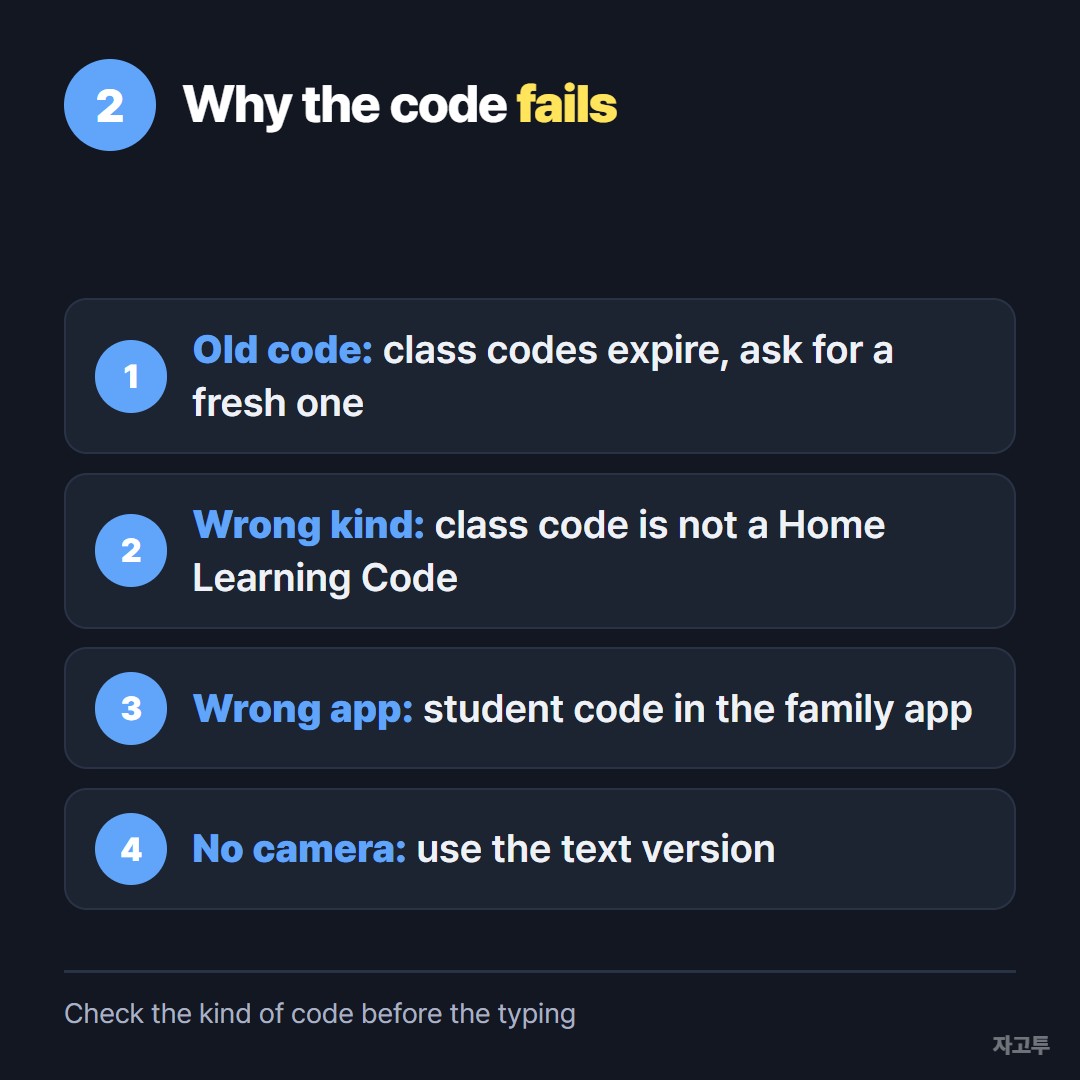
▲ Check the kind of code before you check the typing
- The code is old. Class codes are made to expire, so a photo of last week's code on the board often stops working. Ask for a fresh one rather than retyping it.
- It is the wrong kind of code. A class code is for signing in at school.
A Home Learning Code is a personal code a teacher sends so a student can sign in at home. They look alike and are not interchangeable.
- It went into the family app. Seesaw has a separate family side for parents. A student code will not open the journal there. Look for the student option on the first screen.
Treat a Home Learning Code like a password. It opens one child's account, so keep it out of group chats.
3. Getting the right code to the right device
The QR code is still the quickest path. Scanning beats typing for a child who is still learning letters.
The harder part is often a link, not the code.
A teacher wants every tablet on the same activity page, or a parent has the sign-in address in an email on their phone and the child is on a family laptop.
For a non-sensitive link like that, ZAGO.TO can help: paste it on the phone, get 4 digits, and type them into a browser on the laptop.
ZAGO.TO deletes the text 1 minute after it is opened, or after 1 minute if nobody opens it. It moves text only, not files, and it cannot be reopened later.
It has no in-browser encryption yet, and our server can read what you send. Fine for a public page address, not for a Home Learning Code.
Sending one link to a whole class works differently, and How to share a link with students when half the class is not logged in yet goes through that.
4. Checklist before the first day
- Teachers: print fresh QR codes close to the day, and say in the parent note which code goes in which app.
- Parents: check whether the device has a working camera. If not, ask for the text version.
- Both: keep personal codes in a private message, never on a class page.