QR code for Google reviews: find your review link and print it right
2026-10-28
This post contains affiliate links. As an Amazon Associate, ZAGO.TO earns from qualifying purchases.
A customer pays, smiles, and says the coffee was great. You would love that sentence on Google.
They would probably write it, too, if it took ten seconds instead of a search, a scroll and a tap on the right tab.
A QR code for Google reviews closes that gap. It opens the review box directly, star rating first.
Getting it right takes three things: the correct link, a static code, and a print size people can actually scan from where they stand.
1. Find your Google review link
Google gives every Business Profile a short link that opens the review window. You do not need a paid tool to get it.
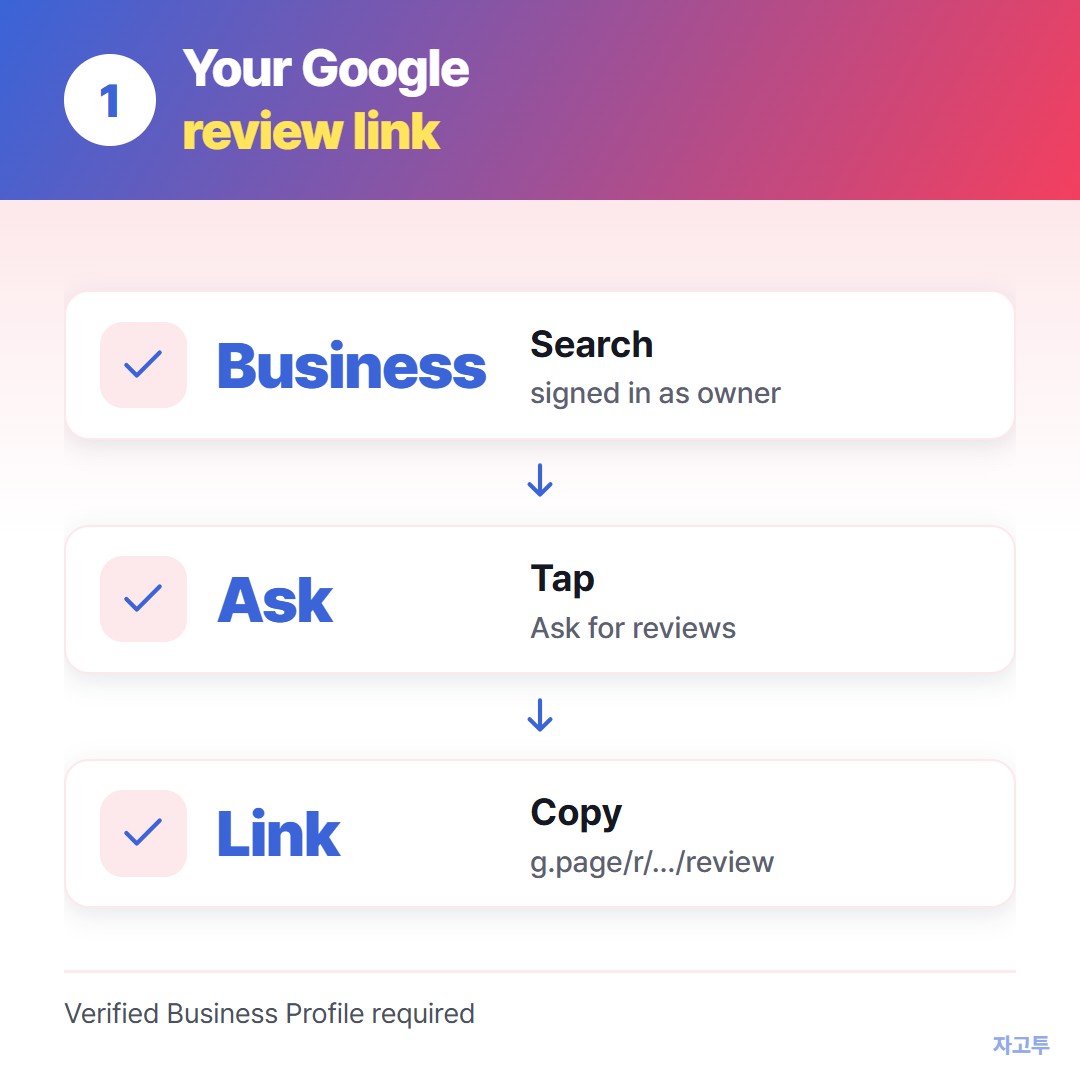
▲ Search, open your profile, ask for reviews, copy the link
- Sign in with the Google account that manages the business.
- Search for your business name on Google, or open Google Maps. Your profile panel appears with owner options.
- Tap "Ask for reviews" (on some layouts it sits under "Read reviews" or "Get more reviews").
- Copy the link. It looks like `g.page/r/` followed by a code and `/review`.
Paste that link into a private browser window before you do anything else. If it opens the star rating box, it is the right link.
If it opens your profile page instead, you copied the share link, not the review link.
No Business Profile yet? The review link only exists for verified profiles, so that step comes first.
2. Turn the link into a static QR code
There are two kinds of QR code. A static code stores your link inside the pattern itself.
A dynamic code stores a short redirect owned by the generator, and that redirect can stop working when a free trial ends.
For a review card that will sit on a counter for years, static is the safer choice. Your Google link is already short, so you lose nothing.
▲ Scan the printed card once yourself before it goes next to the register
The free QR Code Generator on ZAGO.TO makes static codes only.
Paste the link, add your logo in the middle if you like, and download PNG for screens or SVG for print.
There is no sign-up, and nothing about your scans is tracked. That also means it cannot tell you how many people scanned.
If you need scan counts, a paid dynamic service is the right tool.
The full static versus dynamic story is in free QR code generator, no expiration.
3. Print it at a size that scans
The common rule: a code scans comfortably from about ten times its own width.
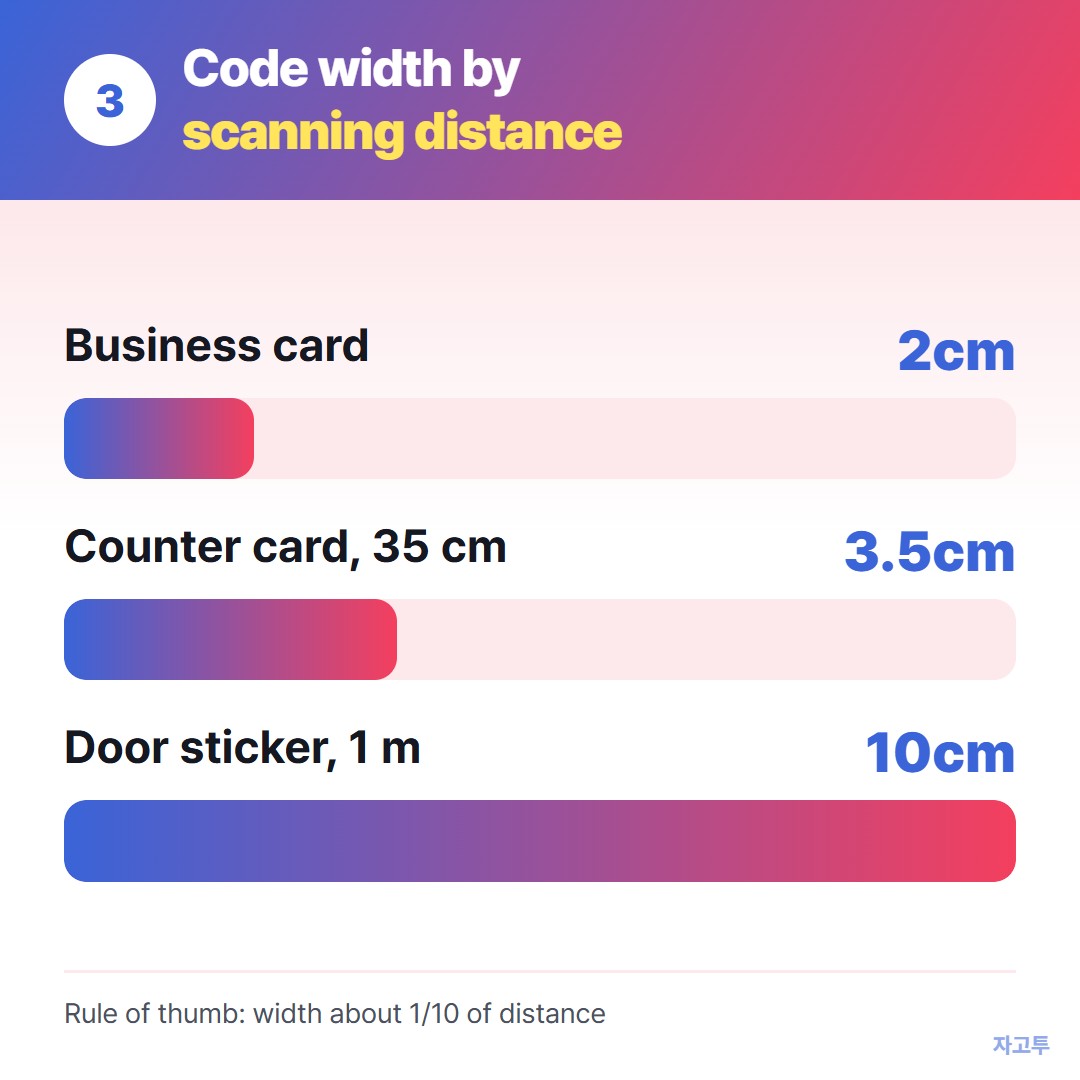
▲ Measure where the customer stands, then divide by ten
- Counter card or table tent (scanned from 30 to 40 cm): 3 to 4 cm wide, about 1.5 inches
- Receipt or business card: 2 cm minimum, and keep it on a plain white area
- Door or window sticker (scanned from a metre): 10 cm or more
Leave a quiet border around the code, roughly the width of four of its small squares. Dark code, light background, matte paper if the counter sits under bright lights.
Glossy laminate reflects and confuses phone cameras.
A short line above the code helps more than you might expect. "Scan to leave a review, takes 20 seconds" tells people what will happen before they lift the phone.
4. What Google allows when you ask
Google's review policy is short on this point. You can ask every customer for a review.
You cannot offer a discount, a free drink or a prize in exchange, and you cannot ask only the happy ones. Keep the card neutral and put it where everyone sees it.
Before you print
- The link opens the star rating box in a private window
- The code is static, so no trial can expire under it
- Width is at least one tenth of the scanning distance
- Quiet border on all four sides, matte finish
- One test scan from both an iPhone and an Android phone
Make the code in the QR Code Generator, print one sample, and scan it from where your customers stand.
Other tools: Word Counter · Wheel Spinner
 Days until Christmas
 Word Counter
 Age Calculator
 Wheel Spinner