How to transfer notes from an iPhone to Android, all of them or just one
2026-10-12
This post contains affiliate links. As an Amazon Associate, ZAGO.TO earns from qualifying purchases.
Two routes cover almost everyone.
If you are figuring out how to transfer notes from an iPhone to Android, first decide whether you are moving the whole library or one note you need right now. The answer changes the method.
1. All your notes: sync them through a Gmail account
▲ Moving the whole notes library happens once, so it is worth doing properly
On the iPhone, open Settings, Notes, Accounts (on older versions, Mail, Contacts), add your Google account and turn on Notes.
New notes you create in that Gmail account sync to Gmail as a label called Notes.
Notes stored in iCloud or on the phone do not move by themselves. You either move them into the Gmail account folder inside the Notes app, or copy the important ones across.
On the Android phone, they appear in Gmail under the Notes label.
They arrive as read-only emails, so paste them into Google Keep or Samsung Notes if you want to edit them.
The other route is a computer. Open iCloud.com, go to Notes, and copy or export what you need. This is the method most guides mean by "with a computer."
2. Compare the routes
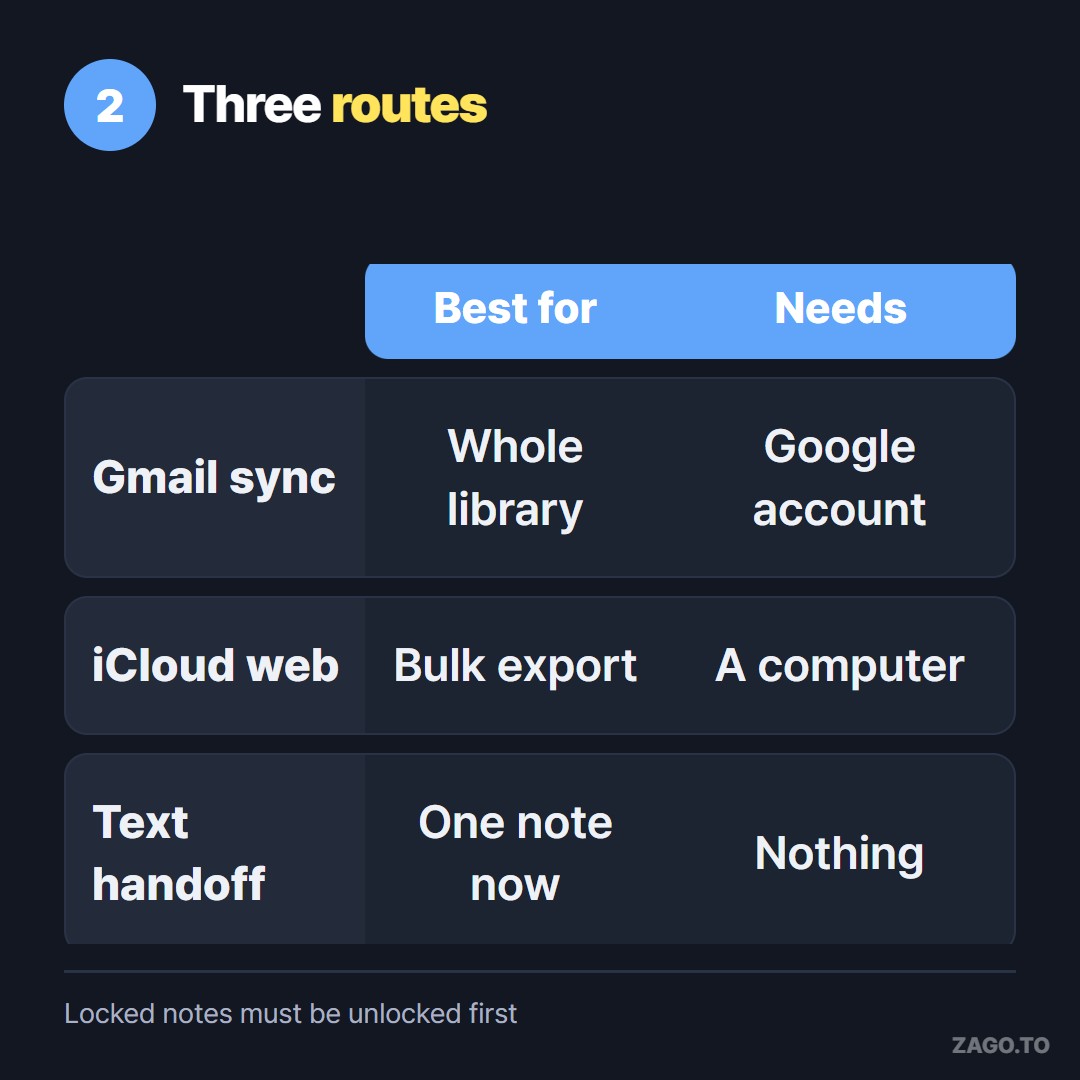
▲ Pick by how many notes you have and whether a computer is nearby
A few things do not travel well on any route. Locked notes need to be unlocked first. Drawings, scans and checklists often turn into plain text or attachments. Check the important ones by hand.
3. One note, right now
Sometimes you only need a single note on the new phone: a recipe, a packing list, an address. Setting up account sync for that is a lot.
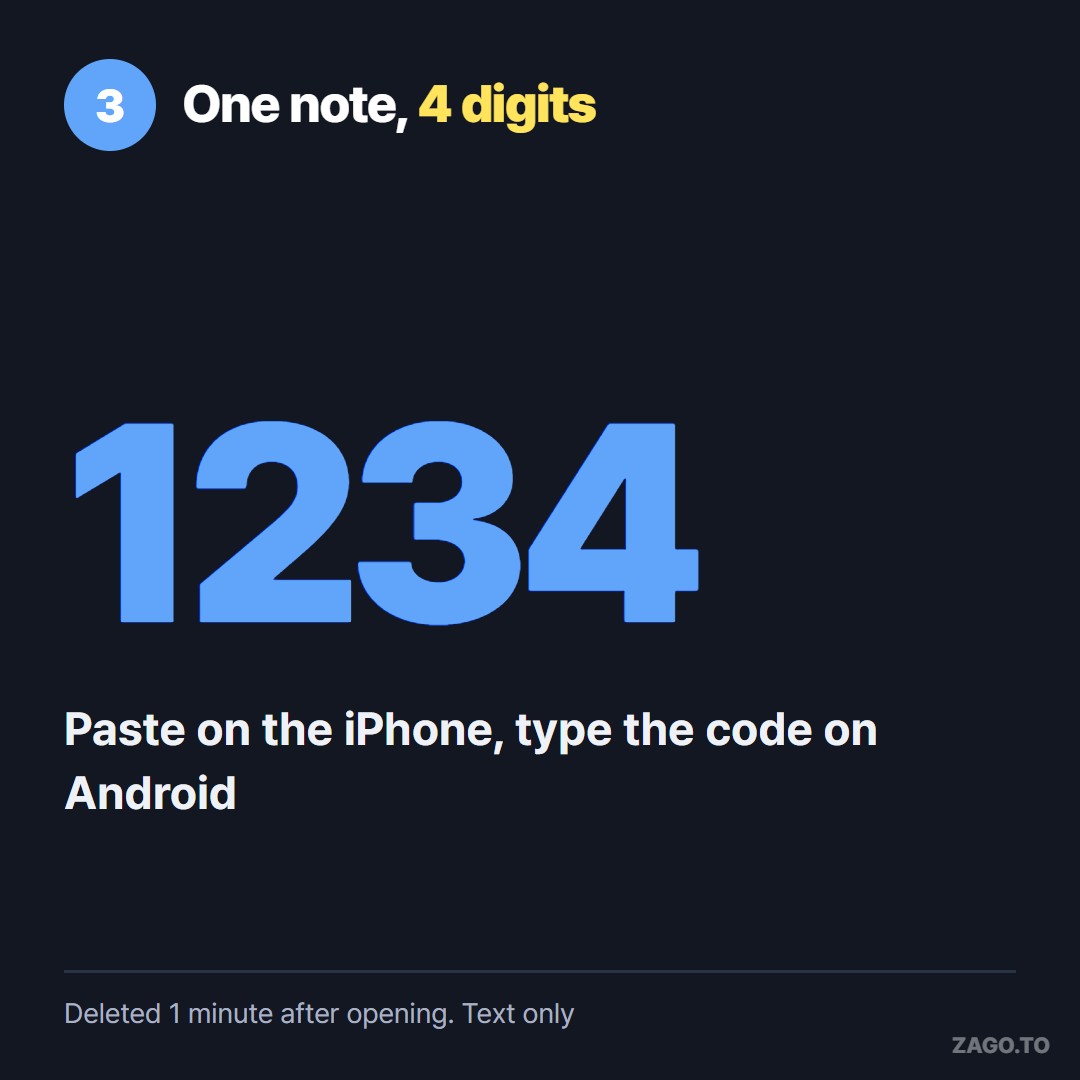
▲ One note does not need an account setup
Open the note, select all, copy. Then paste it into ZAGO.TO on the iPhone, get a 4-digit code and type it on the Android phone. The text appears and you paste it into your notes app.
For short snippets like a link or a phone number, How to copy text from iPhone to Android covers three other ways.
ZAGO.TO is deliberately short-lived. Unopened text is deleted after 1 minute, and opened text 1 minute after opening, and it cannot be opened again.
Text only, up to 10,000 characters, no images or files. There is no in-browser encryption yet, so our server can read what you send. Keep passwords out of it.
Summary
- The whole library: add Google to iPhone Notes, then move notes into that account
- Locked notes, drawings and scans need a manual check
- A single note: copy it, send it as text, paste it on the Android phone