How to share a Quizlet with someone: a link, a class, or a set they can edit
2026-10-15
This post contains affiliate links. As an Amazon Associate, ZAGO.TO earns from qualifying purchases.
Your study partner asks for the flashcards. Or the whole class needs them before Friday. Or the set is on your phone and the school computer is the one in front of you.
To share a Quizlet with someone, you need to answer one question first: should they only study it, or also change it? The steps below follow that order.
Contents
- Copy the link to a set
- Check who can see it
- Share with a whole class
- Share a Quizlet with someone to edit
- When the link is on the wrong device
1. Copy the link to a set
▲ One link is usually all a study partner needs
Open the study set. On the website, look for the Share button near the title. It gives you a link to copy, and on some accounts options for email or a class.
In the mobile app, tap the share icon or the three dots on the set, then choose to share or copy the link.
Send the link, not a screenshot of the cards. With the link, the other person can use flashcards, tests and the other study modes.
2. Check who can see it
A link only works if the set is visible to the person who opens it. If someone says the link shows nothing, visibility is the first thing to check.
Open the set's settings and look for who can view it. Depending on your account, the choices include everyone, certain classes, people with a password, or just you.
If it is set to just you, the link will not help anyone else. Change it, then send the same link again.
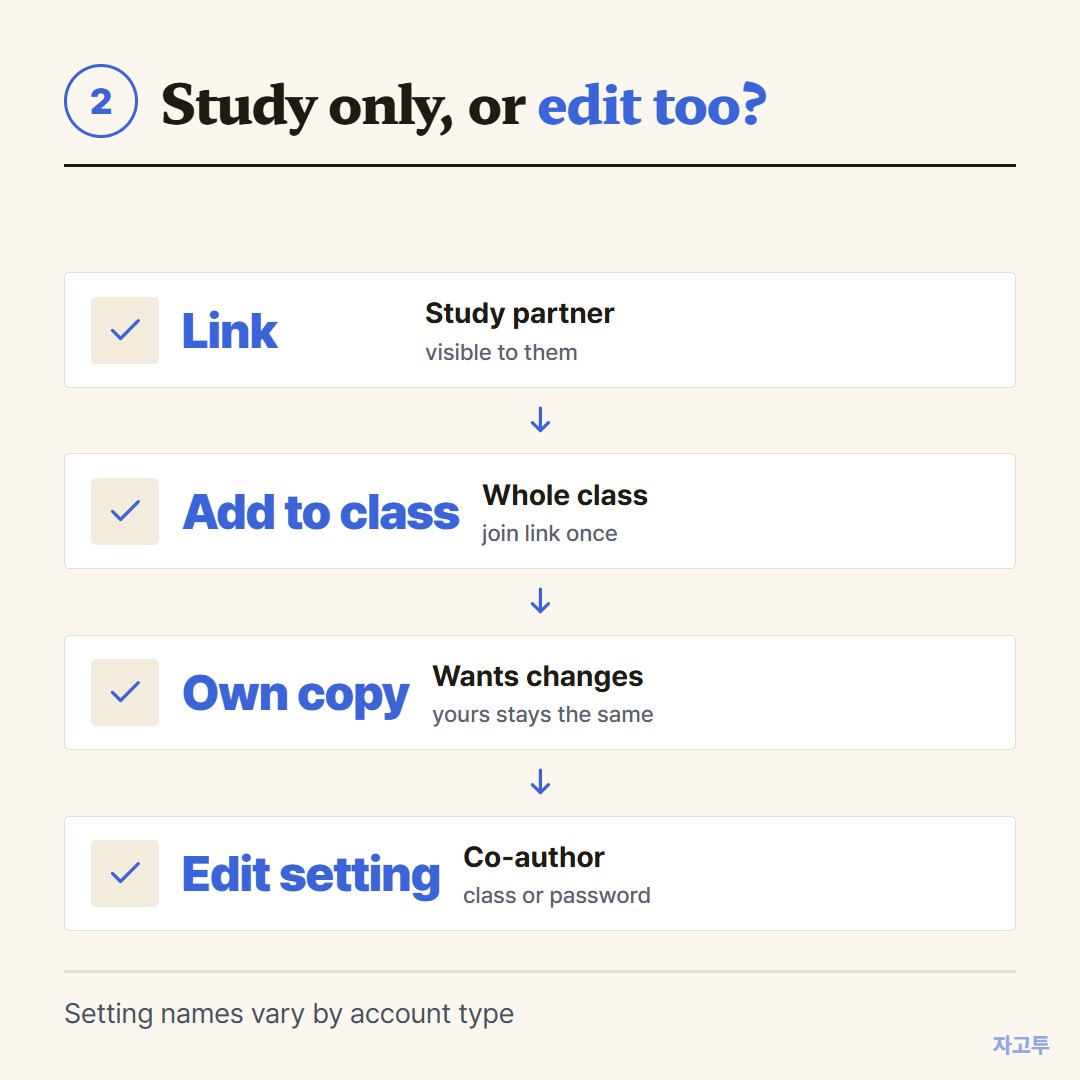
▲ Viewing and editing are two separate settings
3. Share with a whole class
For a class, adding the set to a Quizlet class is tidier than posting a link. Students who joined the class find it there, and it stays there for the rest of the term.
A teacher can share the class join link once, and every set added later appears for everyone in it.
If your school runs on Google Classroom, posting the Quizlet link there works too.
Our guide on how to share a link on Google Classroom covers posting it so students can open it.
4. Share a Quizlet with someone to edit, or to copy
Viewing and editing are set separately. Look for the who can edit setting on the set. Classes or a password are the usual ways to let a few people change cards.
For most study partners, editing is not needed. They can usually save the set or make their own copy, and change their copy without touching yours.
That is safer when ten people study the same set and one of them likes to "fix" answers.
5. When the link is on the wrong device
The set is open on your phone. The computer you want to use belongs to the school library, and you do not want to sign in to your email there.
For one link, ZAGO.TO is a short route. Paste the link on zago.to on your phone, get a 4-digit code.
Then open zago.to on the school computer and type the code. The link appears, ready to click.
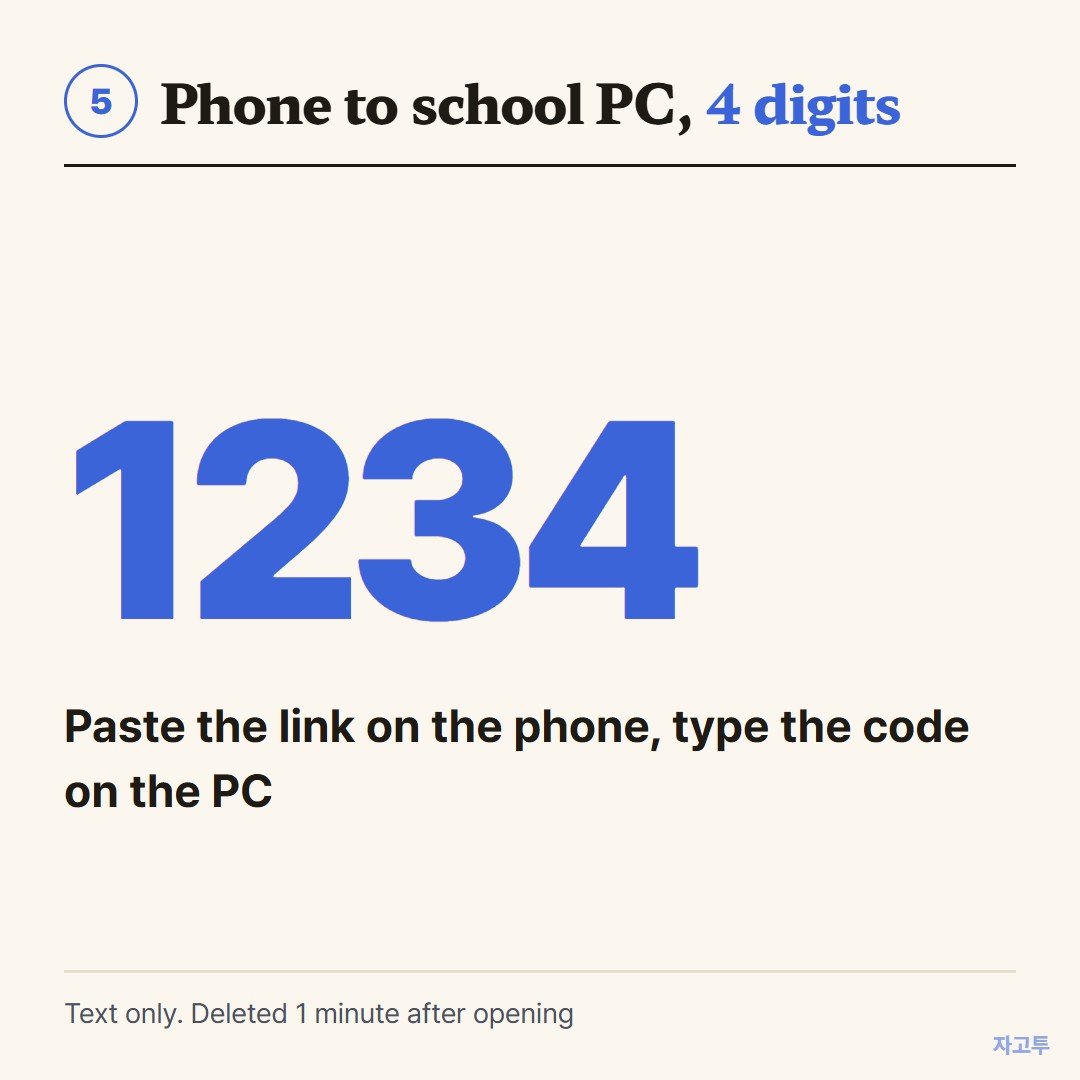
▲ An example code. Real codes are random
It is text only, up to 10,000 characters, so a link or a list of terms is fine.
The text is deleted 1 minute after it arrives if nobody opens it, and 1 minute after it is opened, and it cannot be opened again.
There is no in-browser encryption yet, so our server can read what you send. A study link is fine. Your Quizlet password is not something to move this way.
In three lines
- Use the Share button on the set, and send the link rather than screenshots.
- If the link shows nothing, check who can view the set.
- For a class, add the set to the class. For a partner who wants changes, let them make a copy.