How to share a Kahoot link with students: the game PIN, the challenge link and the share link
2026-10-15
This post contains affiliate links. As an Amazon Associate, ZAGO.TO earns from qualifying purchases.
Kahoot has three things people call "the link", and students land in different places depending on which one you send.
If you are working out how to share a Kahoot link with students, start with one question.
Decide whether they are playing together right now, playing on their own later, or whether you want another teacher to get a copy of the quiz.
How to share a Kahoot link: three links, three jobs
▲ The same kahoot can be shared three ways
- Live game PIN: you press Start, a PIN appears on your screen, and everyone joins at kahoot.it at the same time
- Challenge link: you assign the kahoot, set a deadline, and students play at their own pace from a link or PIN
- Share link: you send the kahoot itself, so another person can view it, duplicate it or host it
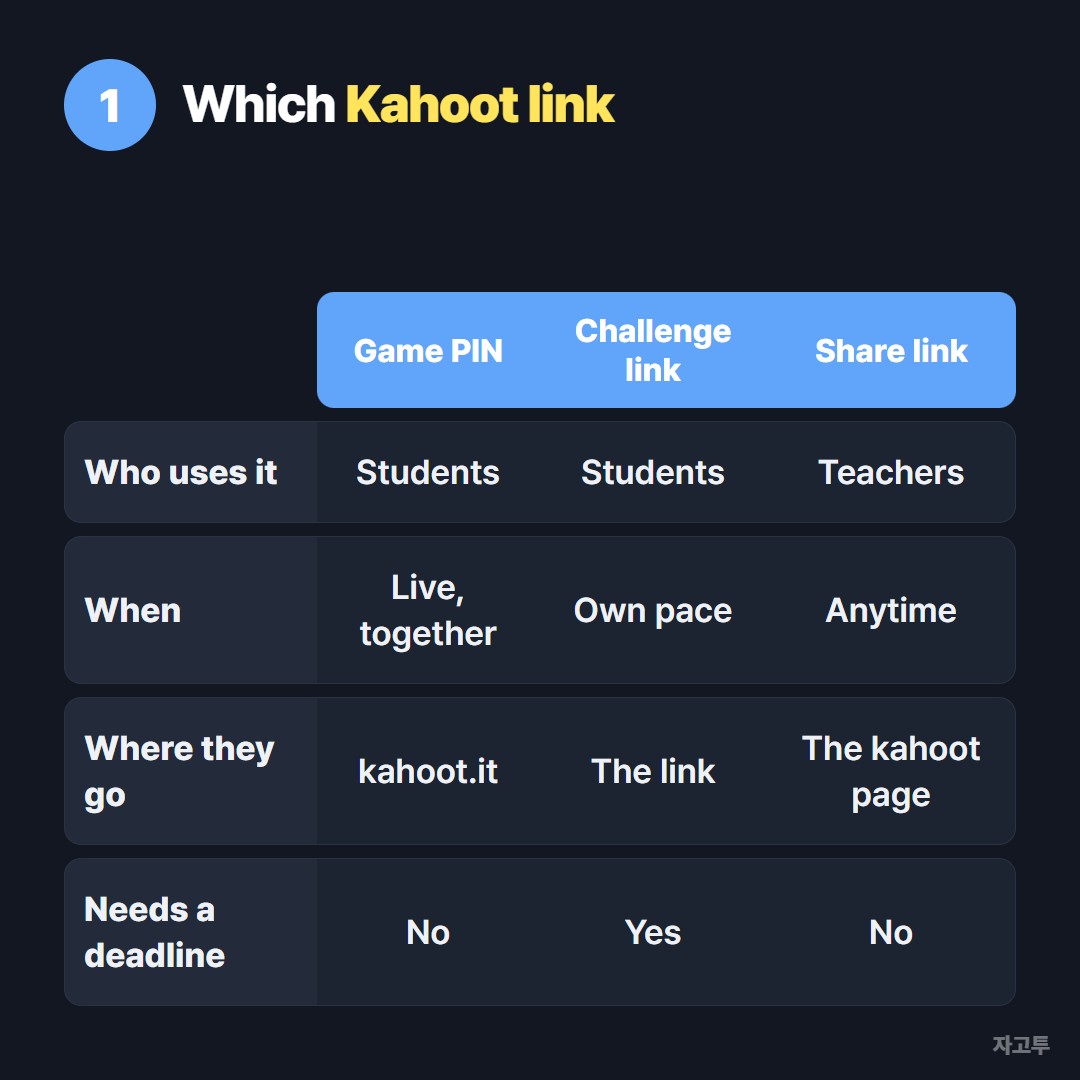
▲ Pick by who is playing, and when
Students who need to play almost never need the share link. The share link is for colleagues. Students get either the live PIN or the challenge link.
The live game PIN, for a room playing together
Open the kahoot, choose to host it live, and pick classic or team mode. The game PIN shows in large type at the top of the screen.
Students go to kahoot.it in a browser or open the Kahoot app, type the PIN and enter a nickname. Nothing has to be sent beforehand, which is why this works best in a classroom with a projector.
The PIN only works while that game lobby is open. If you close the game and start again, the PIN changes.
The challenge link, for homework
Choose the assign option instead of hosting live. Set a deadline, then copy the challenge link that Kahoot creates. That is the link you post in your class page, email or learning platform.
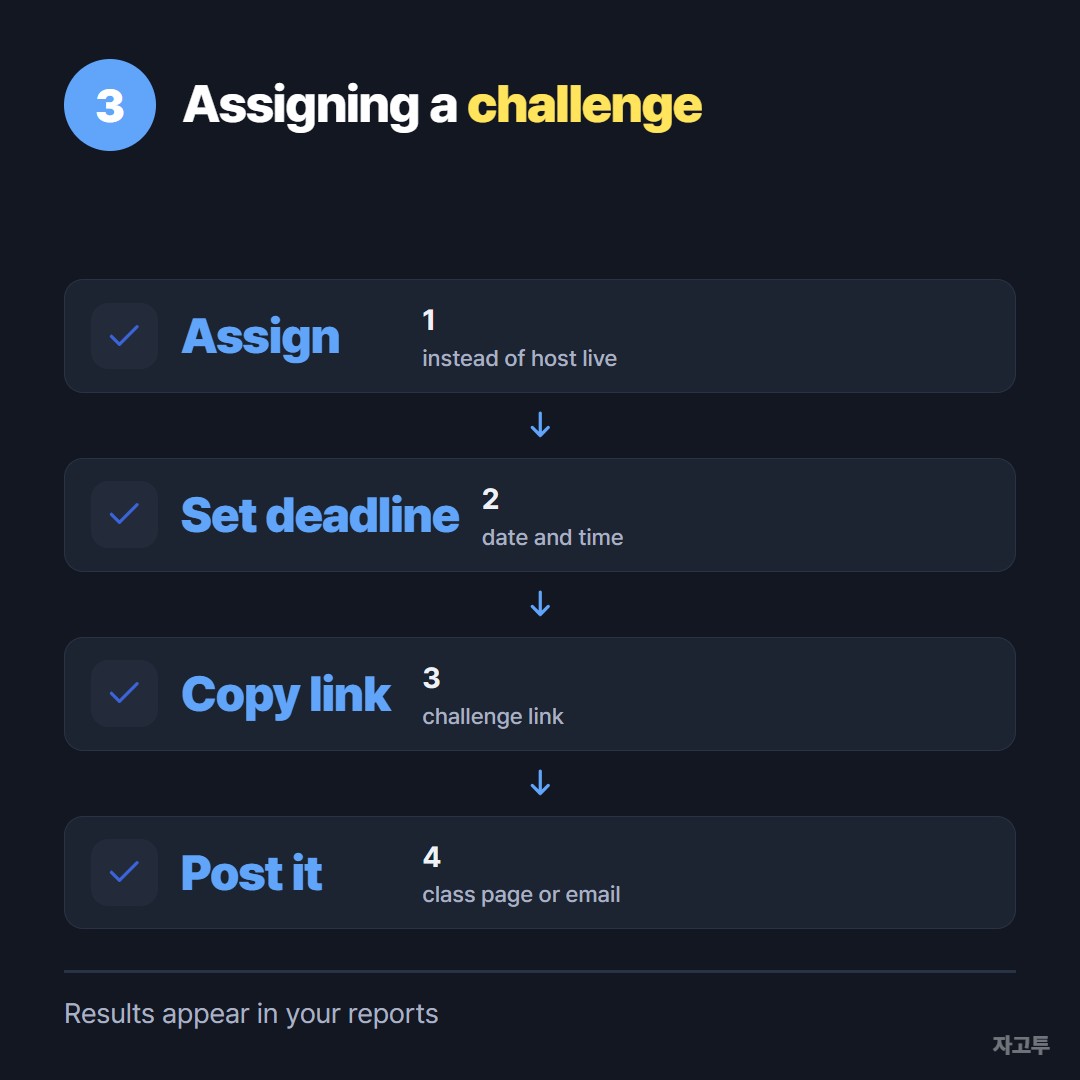
▲ Assign, set a deadline, copy, post
Students open the link and play alone, on their own schedule. You see the results in your reports once they finish.
Challenge links are long. If you are posting through Google Classroom, the steps in How to share a link on Google Classroom apply the same way.
The share link, for other teachers
The Share button on the kahoot page gives a link to the quiz itself. A private kahoot can still be shared this way, so only people with the link can find it.
Use this when a colleague wants to run your quiz in their own class. They duplicate it into their account and host their own game.
Quick answers
Can students join with a link instead of typing the PIN? For a live game, Kahoot can show a QR code and a join link on the lobby screen. For homework, the challenge link already opens the game directly.
The challenge link is on my phone and the class PC is not signed in. How do I move it? Emailing it to yourself works if you can sign in on that PC.
For one link, ZAGO.TO is another way: paste the link on your phone and you get a 4-digit code. Type the digits on the PC at zago.to and the link appears.
The text is deleted 1 minute after it is opened, or after 1 minute if no one opens it, and it cannot be opened again.
ZAGO.TO moves text only, not files. The server can read what you paste, so it is fine for a challenge link and not for passwords.
Why does "game not found" appear? Usually the lobby was closed, the game already ended, or a digit in the PIN was mistyped. Start a new lobby and read the new PIN aloud, one digit at a time.