How to find my Trust Wallet address, and why each coin shows a different one
2026-10-22
This post contains affiliate links. As an Amazon Associate, ZAGO.TO earns from qualifying purchases.
The exchange's withdrawal form is open on the laptop, the cursor is blinking in the address box, and the wallet is on the phone in your other hand.
▲ The wallet is on the phone, the form is on the laptop, and the address has to cross that gap
That is where how to find my Trust Wallet address gets typed. The first surprise is that Trust Wallet does not have one address.
It has one for every coin you have added, and some of them change on their own. Below are the questions people ask at that moment, one at a time, and a checklist before the paste.
1. How to find my Trust Wallet address in the app
Open Trust Wallet and look at the home screen. Under the balance there is a row of buttons, and Receive is one of them.
Tap Receive and a search list of your coins appears. Pick the coin the sender is paying you in. The next screen shows a QR code, the address under it, and a Copy button.
There is a second way in. Tap the coin itself in your list, then Receive on its page. Same screen, already filtered to that coin.
Receive on the home screen, then the coin, then Copy. That is the whole move, and it is the same on iPhone and Android.
2. Why does every coin show a different address?
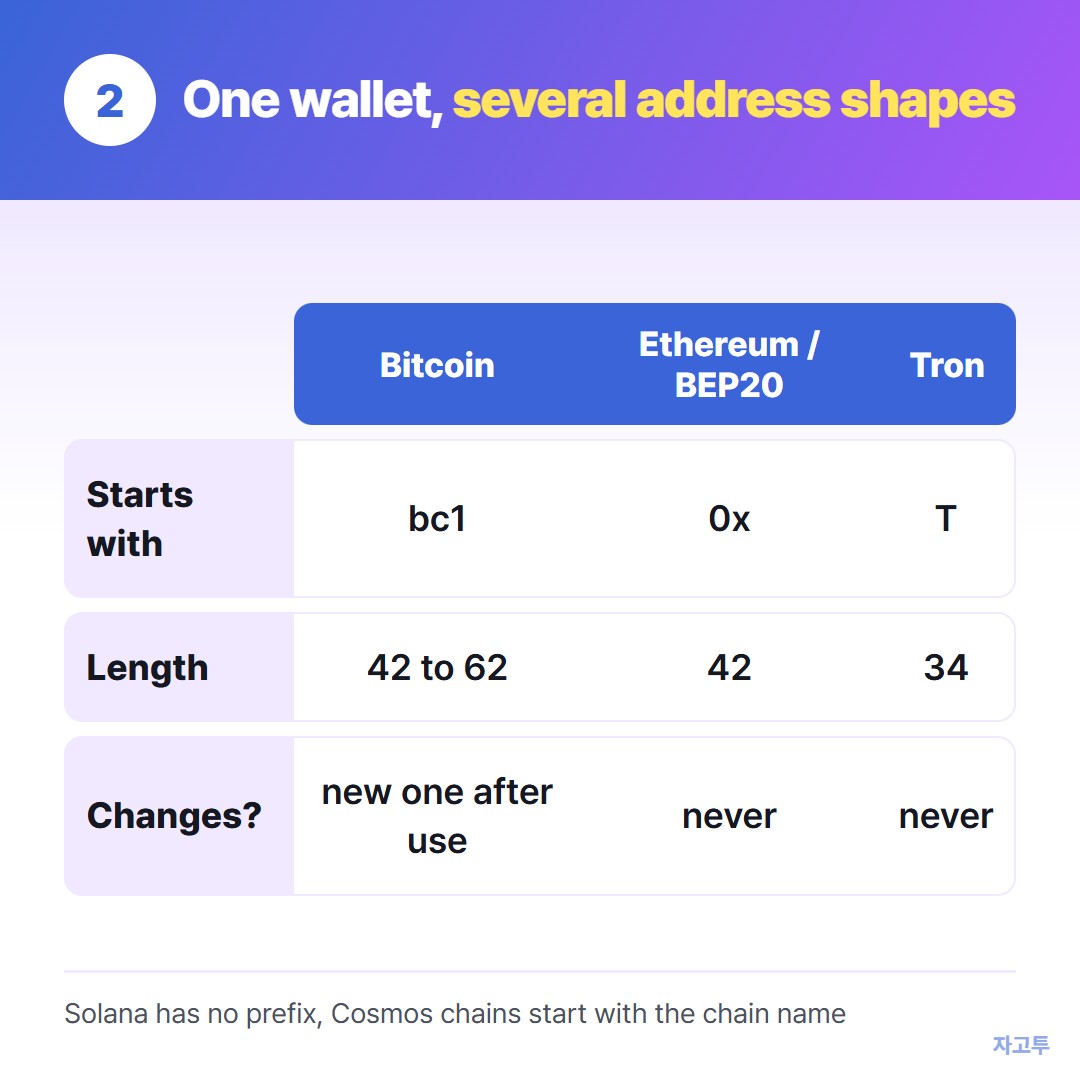
▲ The shape tells you the network before you read any label
Trust Wallet holds many blockchains under one recovery phrase, and each chain gets its own address.
Pick Bitcoin and the bitcoin address on Trust Wallet starts with bc1. Pick Ethereum and you get a 0x string of 42 characters.
Several coins share one address. Ethereum, BNB Smart Chain, Polygon, Arbitrum and the other EVM chains all show the same 0x string.
That is why the Trust Wallet BEP20 address people search for looks identical to their Ethereum one. Same address, different network.
Others look nothing alike. Solana is a run of letters and numbers with no prefix. Tron starts with T. Cosmos chains begin with the chain name, like cosmos1.
MetaMask has the same shared-0x behaviour and a network dropdown to go with it. That is covered in How to copy your MetaMask address.
3. Does the Bitcoin address change? Mine looks different from last time
Yes, and it is normal. For Bitcoin and a few other coins, Trust Wallet shows a fresh receiving address after the previous one has been used.
The point is privacy: your payments are harder to link together on the public ledger.
The old address still belongs to you, and coins sent to it still arrive. Nothing is lost when the address on the Receive screen changes.
Ethereum style addresses do not rotate. Your 0x address stays the same for as long as the wallet exists, which is why exchanges let you save it as a whitelisted address.
4. Which address does the exchange want for USDT?
USDT runs on several networks, and the withdrawal form asks you to pick one. Ethereum (ERC20), BNB Smart Chain (BEP20), Tron (TRC20) and Solana are the usual choices.
The Trust Wallet USDT address depends on that choice:
- ERC20 or BEP20: your 0x address. Add the USDT token for that network in Trust Wallet first, so the balance shows when it lands
- TRC20: your Tron address, the one starting with T
- Solana: your Solana address
Pick the network on the exchange, then open Receive for USDT on that same network in Trust Wallet.
If the form rejects the paste, the network does not match the address shape. That is the good outcome.
The quiet mistake is a 0x address accepted on the wrong EVM chain, where the coins land somewhere you were not looking.
5. Should I scan the QR code or paste the text?
If the sending device has a camera pointed at your phone, scan. A QR code carries the address with no retyping and no clipboard.
Scanning fails when both ends are screens. A laptop webcam rarely reads a phone screen cleanly, and a desktop has no camera at all.
Then the address has to travel as text. When each option fits is in Wallet address QR code.
6. Checklist before you paste
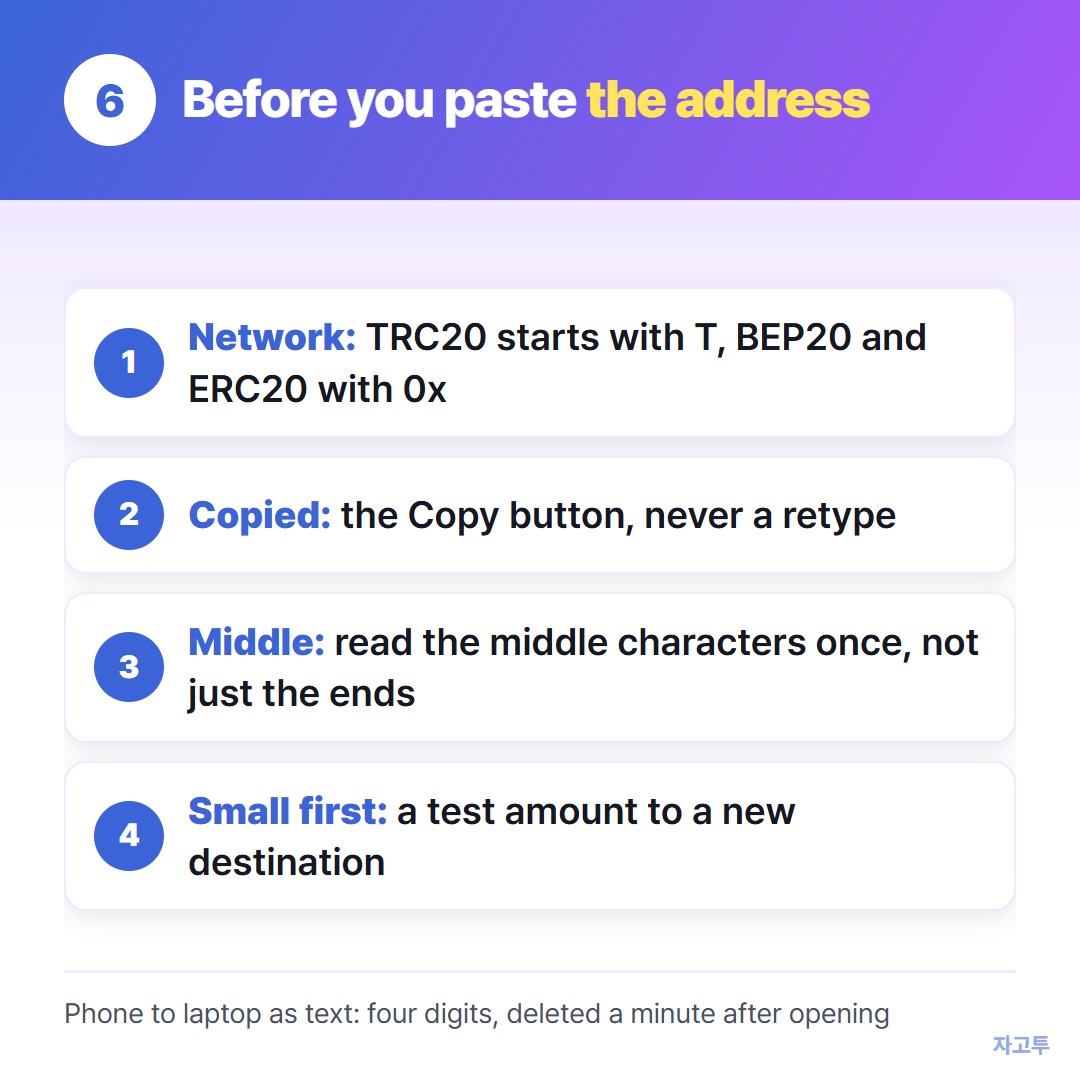
▲ Thirty seconds of checking, against a transfer that cannot be reversed
- Coin and network match. The form says TRC20, the address starts with T. The form says BEP20, the address starts with 0x
- Copied, not typed. Trust Wallet's Copy button, never a retype from a screenshot
- Middle characters read once. The first and last four are not enough, and that is a post of its own
- A small amount first when the destination is new, before the full transfer
The step most guides skip is getting the copied text from the phone to the laptop. The two devices share no clipboard, and the laptop is often signed in to nothing of yours.
ZAGO.TO is a page for exactly that hop. On the phone, open zago.to in the browser and paste the address you copied in Trust Wallet. A 4-digit code comes back, 1234 for instance.
On the laptop, open zago.to and type the digits. The address appears, and you copy it into the withdrawal form. No account, nothing installed. Five digits only when every four-digit code is in use.
The address is wiped one minute after the laptop opens it, or one minute after sending if nobody opens it. There is no second opening, so bring the form up before you type the digits.
The limits are worth knowing. Text only, up to 10,000 characters. There is no in-browser encryption yet, so the server can read the text during that minute.
A receiving address is public by design, which makes it fine for this. A recovery phrase or private key is not public and must never travel this way or any other way.
Trust Wallet never needs your phrase to show you an address. The rest of that list is in What you should never move between devices.
 Days until Christmas
 Word Counter
 Age Calculator
 Wheel Spinner