How to email yourself in Gmail, Outlook and on iPhone, and when a note to self is the wrong tool
2026-10-12
This post contains affiliate links. As an Amazon Associate, ZAGO.TO earns from qualifying purchases.
Short version: to email yourself, start a new message and put your own address in the To line. Gmail and Outlook can also schedule it for later. For a quick piece of text on another device, an email is often more than you need.
Knowing how to email yourself is one of the oldest computer habits there is, and it still works.
A PDF for the print shop, a Word document you need at home, a reminder that should land on Monday morning.
The steps are nearly identical everywhere. What differs is what each app adds on top, and where the habit starts to cost you.
1. How to email yourself in Gmail, Outlook and iPhone Mail
▲ Most self-emails exist to move one thing from one screen to another
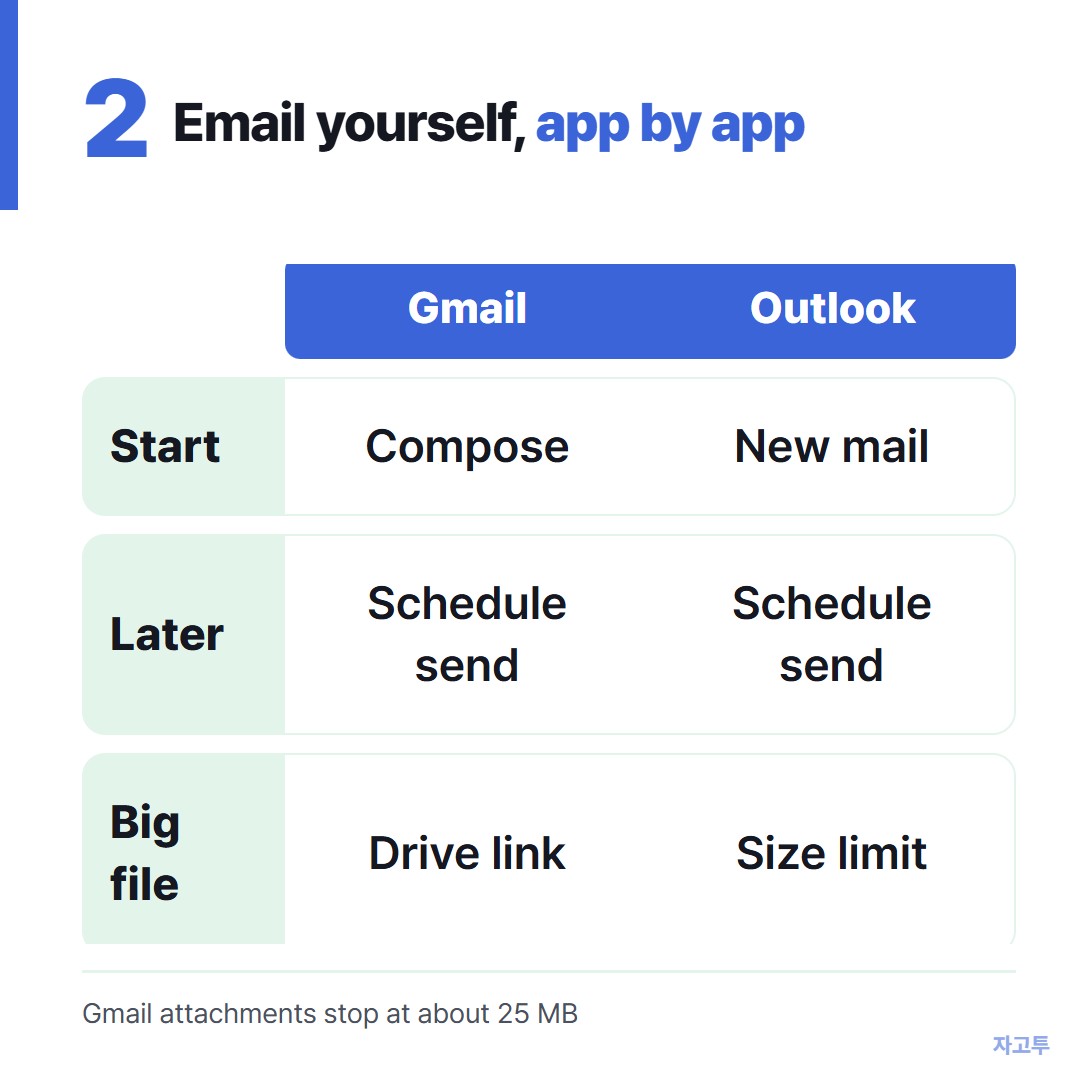
Gmail. Click Compose, type your own Gmail address in To, add a subject you will recognise later, and send. In the Gmail app on a phone it is the pencil button, then the same steps.
Outlook. Choose New mail, put your own address in To, and send. It works the same in Outlook on the web, the desktop app and the phone app.
iPhone Mail. Tap the compose icon at the bottom right and type your address. From the Files app or Photos, tap Share, then Mail, and the PDF or photo is already attached.
That share route is the answer to the common searches about how to email yourself a PDF or a Word document. Attach, address it to yourself, send.
Attachments have limits. Gmail stops at about 25 MB per message and turns bigger files into a Google Drive link. Outlook's limit is in the same range. A long video will not go this way.
2. Emails to your future self
▲ Scheduling is the one thing email does better than any note app
This is where email still beats notes. You can make the message arrive later.
- Gmail: click the small arrow next to Send and choose Schedule send. Pick a date and time.
- Outlook: look for Schedule send in the new Outlook and on the web, or Delay delivery in the classic desktop app.
A message that turns up on the morning you need it is a better reminder than one buried under last week's mail.
3. When email to self is the wrong tool
The inbox fills up. A few months of notes to self, all titled "link" or "this", and finding the one you need takes longer than writing it again.
In Gmail, searching `from:me to:me` pulls every one of them into one list, which helps when it is time to clear them out.
Work accounts may not let it out. Many companies block automatic forwarding to personal addresses, and some log every message that leaves.
Mailing a work file to your own Gmail can be against policy even when it is technically possible.
If your company runs Teams, the chat with yourself may be the allowed route, and Teams chat with yourself explains what your employer keeps there.
Someone else's computer. On a library or hotel PC, emailing yourself means signing in to your email there first. That is the account you least want to leave behind.
A few lines of text to the phone next to you. An address, a code, a paragraph from a document. Email works, but it is a long trip for something that only needs to cross the desk.
For that last case, ZAGO.TO is built narrowly. Paste the text and you get a 4-digit code. Type it on the other device and the text appears, up to 10,000 characters, with no sign-in.
It is meant to forget. Unopened text is deleted after 1 minute, and opened text 1 minute later, so it cannot be opened again. It carries text only, so the PDF still goes by email.
There is no in-browser encryption yet, and the ZAGO.TO server can read what you paste. Keep passwords and private documents out of it.
Bottom line
Email yourself when the thing is a file, when it should arrive later, or when you want to find it again next year.
For a few lines that only need to reach the phone in your other hand, a shorter route saves your inbox the clutter.