How to copy and paste on a Chromebook, with or without a mouse
2026-10-08
This post contains affiliate links. As an Amazon Associate, ZAGO.TO earns from qualifying purchases.
Short version: Ctrl+C to copy, Ctrl+V to paste, and Search+V to see what you copied earlier. Getting that same text onto your phone is a separate question, and it has a few answers.
If you are working out how to copy and paste on a Chromebook, you have probably already noticed there is no right mouse button and no Windows key.
The shortcuts are almost the same as on Windows, and the clipboard has one trick of its own.
Contents
- How to copy and paste on a Chromebook with keys
- Without a mouse: touchpad and keys
- Clipboard history on a Chromebook
- Copying from the Chromebook to your phone
1. How to copy and paste on a Chromebook with keys
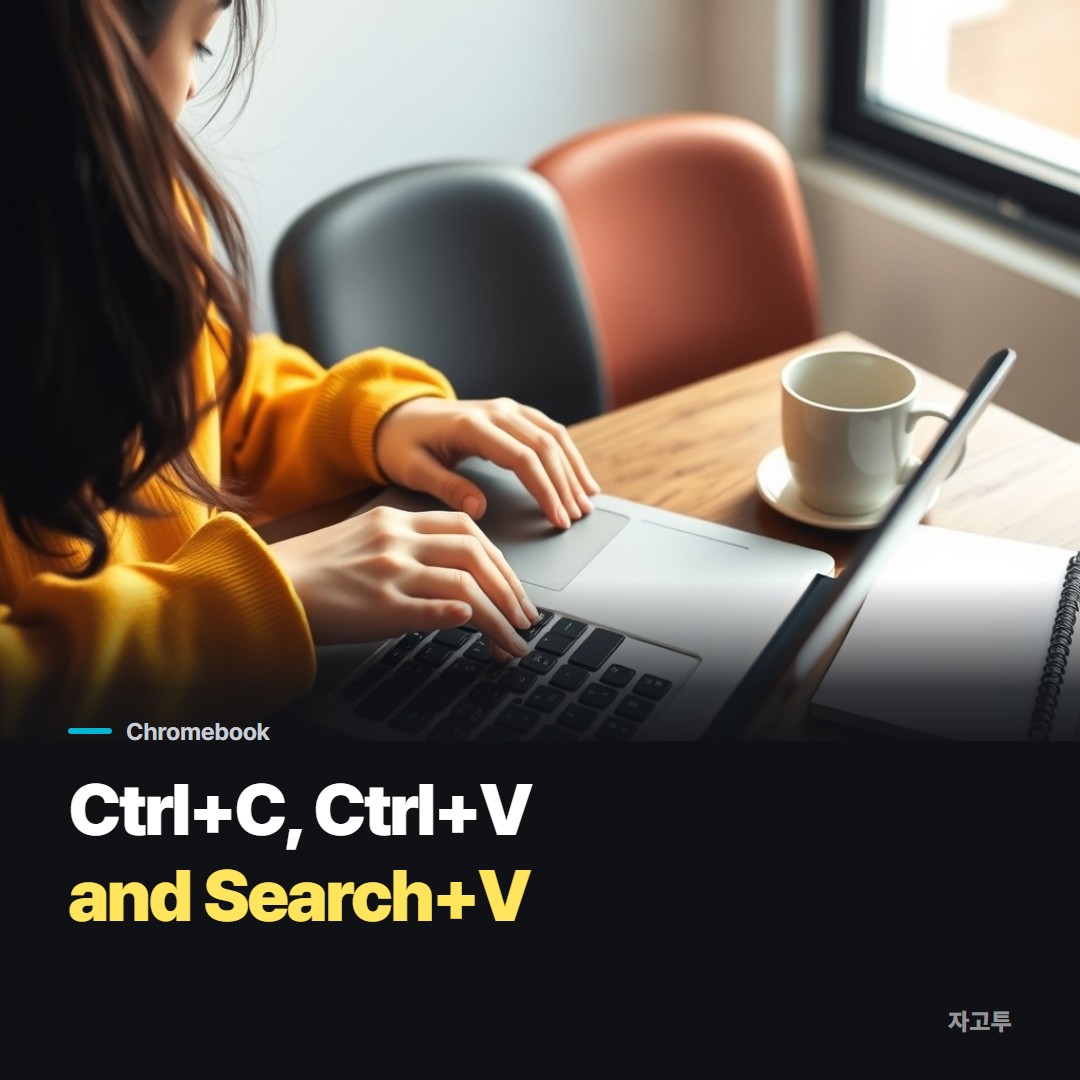
▲ Two keys do most of the work
- Ctrl+C: copy the selected text
- Ctrl+X: cut it
- Ctrl+V: paste
- Ctrl+Shift+V: paste as plain text, without the fonts and colours from the page you copied from
- Ctrl+A: select everything on the page or in the box
The last pair saves more time than it looks. Pasting into a school document with Ctrl+Shift+V keeps your formatting tidy.
2. Without a mouse: touchpad and keys
The Chromebook touchpad has no visible buttons, but it does have a right-click.
Tap with two fingers on the touchpad to get the right-click menu with Copy and Paste. Holding Alt and clicking does the same.
To select text with only the keyboard, put the cursor at the start and hold Shift with the arrow keys. Shift+Ctrl with the arrows jumps a whole word at a time.
For a picture on a web page, two-finger tap on it and choose Copy image. It then pastes into documents and many chat apps.
In the Linux terminal on a Chromebook, paste is Ctrl+Shift+V, the same as most Linux terminals.
3. Clipboard history on a Chromebook
This is the part Windows users usually do not know about.
Press Search+V (on newer keyboards it may be the Launcher or Everything button plus V). A small panel opens with the last few things you copied, five on most versions, text and images.
Click one to paste it. You no longer have to copy, paste, go back, copy the next thing, and paste again.
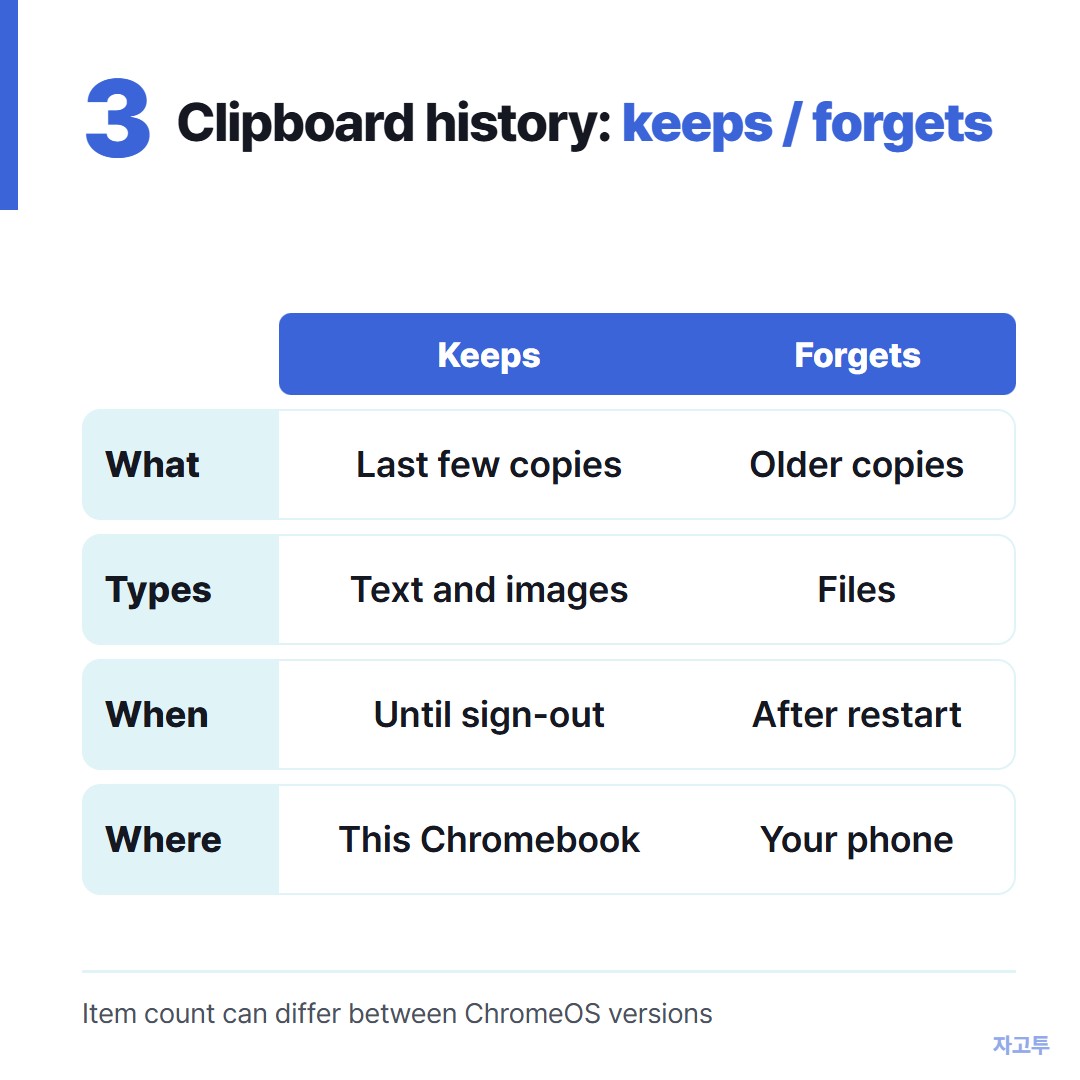
▲ Handy, but short-lived and stuck on this one device
The history is cleared when you sign out or restart, and it does not travel to your phone.
4. Copying from the Chromebook to your phone
Here the answer depends on the phone and on who manages the Chromebook.
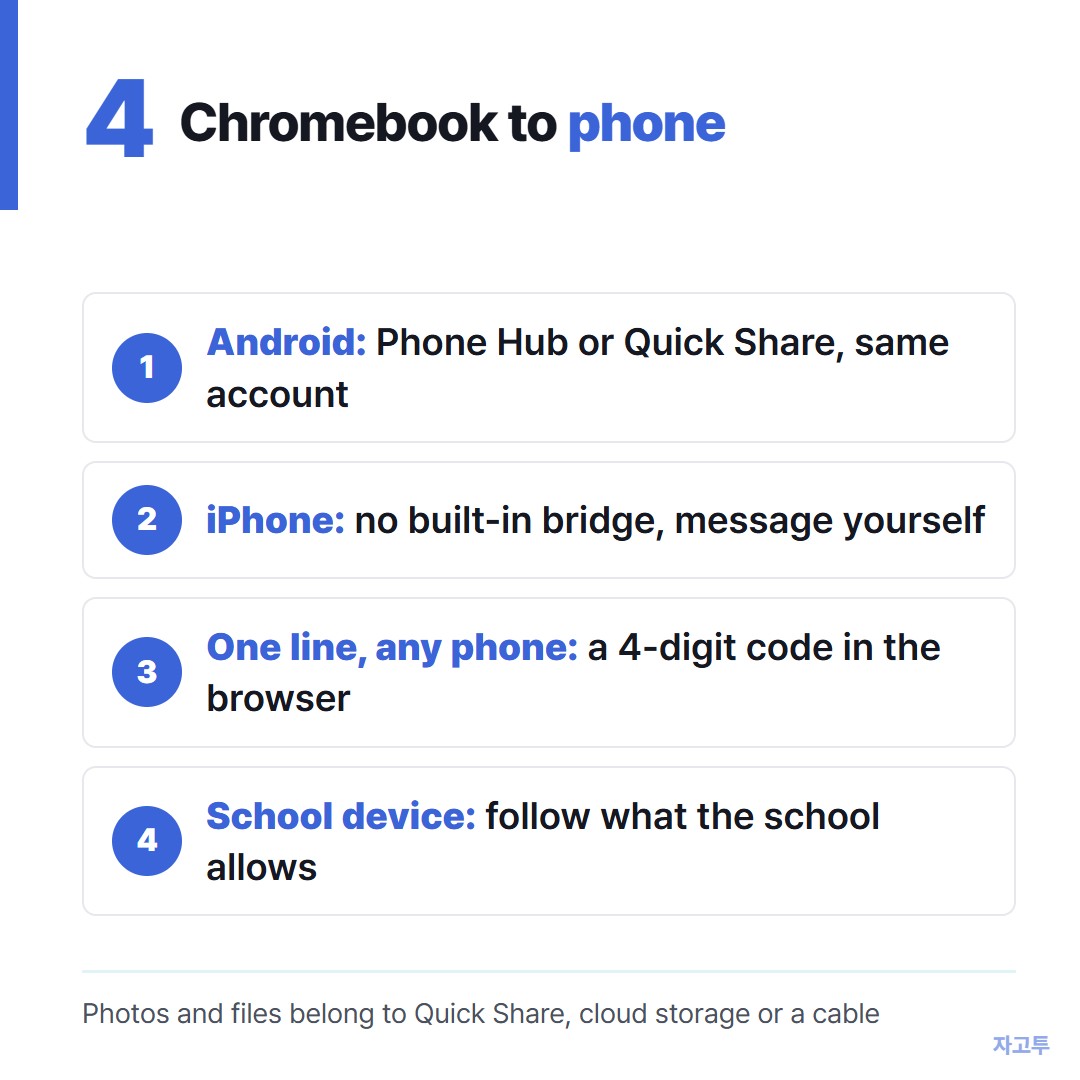
▲ Pick by phone type and by what your school or office allows
Android phone. Phone Hub and Quick Share connect a Chromebook to an Android phone once both are set up with the same Google account. Quick Share handles files and links well.
iPhone. There is no built-in bridge. Emailing or messaging yourself works, though it leaves the text sitting in that inbox.
One line, any phone. For a short piece like an address or a list, ZAGO.TO turns it into a 4-digit code. Paste it on the Chromebook, open zago.to on the phone and type the four digits.
It is text only, up to 10,000 characters, with no account. If nobody opens it, it is deleted after 1 minute, and once opened it is shown for 1 minute and then deleted.
You cannot open it again later, it will not carry photos, and our server can read the text while it is held, so passwords stay off it.
The longer version is in Send text from computer to phone.
School Chromebooks. Many schools switch off Phone Hub, Quick Share, personal sign-in or certain websites.
That is the school's decision, and it is worth respecting rather than working around. If something is blocked, ask your teacher how they want work handed in.
One habit worth keeping
Before you copy the next thing, ask whether you will need the last one again. If yes, Search+V will still have it. If you need it on another device, move it now, while it is still in front of you.