How to copy and paste from a Mac to an iPhone, and what to do when the Mac is not yours
2026-10-13
This post contains affiliate links. As an Amazon Associate, ZAGO.TO earns from qualifying purchases.
You copy an address on the MacBook, pick up your iPhone, press and hold the search box, and tap Paste. What comes out is the photo caption you copied on the phone this morning.
How to copy and paste from a Mac to an iPhone is supposed to be invisible. Apple calls it Universal Clipboard, and when it works you never think about it.
When it does not, one of five settings is usually off.
Contents
- The five things Universal Clipboard needs
- Copy on the Mac, paste on the iPhone
- iPhone Mirroring, the other way in
- When the Mac is signed into someone else's Apple ID
- One-line answer
1. The five things Universal Clipboard needs
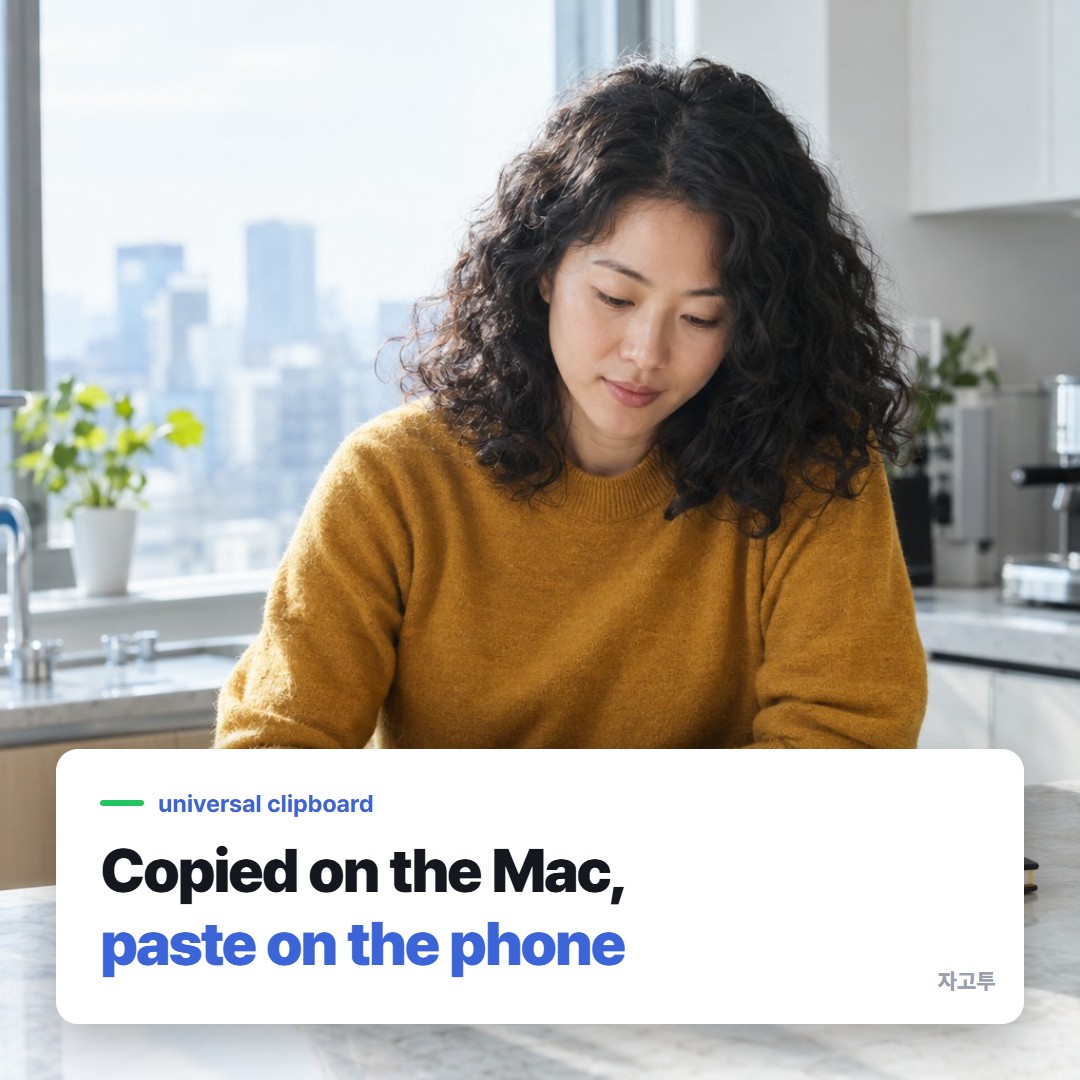
▲ Both devices have to be awake, close and signed in as you
Go through these in order. Most failures are the first or the second.
- The same Apple ID on both. On the Mac, check System Settings and your name at the top. On the iPhone, Settings and your name. They must match exactly.
- Handoff switched on, on both. Mac: System Settings, General, AirDrop & Handoff. iPhone: Settings, General, AirPlay & Continuity (older iOS says AirPlay & Handoff).
- Bluetooth on, on both. Universal Clipboard finds the other device over Bluetooth.
- Wi-Fi on, on both. They do not have to be on the same network, but Wi-Fi must be switched on.
- Close together. Same desk, same room. Not your phone in the car.
If all five are right and it still fails, do not sign out of anything yet. Turn Handoff off and on again on both devices first. That clears it more often than you would expect.
2. Copy on the Mac, paste on the iPhone
▲ Same Apple ID and Handoff come first
On the Mac, select the text and press Command and C. Then, on the iPhone, touch and hold where you want it and tap Paste.
Do it fairly soon. Apple notes that the copied content is only available on the other device for a short time, so copy right before you paste, not five minutes earlier.
A short pause is normal. The iPhone may show a small "pasting from" note while it fetches the text from the Mac.
If you are new to the long press on the phone, How to copy and paste on an iPhone, step by step walks through it.
3. iPhone Mirroring, the other way in
On recent macOS and iOS versions, the Mac can show your iPhone's screen in a window, called iPhone Mirroring. You can copy on the Mac and paste straight into the mirrored iPhone app.
It needs the same Apple ID too, plus a few more conditions, so it does not help with a Mac that is not yours. It is handy when the phone is in another room, which is when Universal Clipboard gives up.
4. When the Mac is signed into someone else's Apple ID
This is the case none of the settings fix. A work MacBook, a shared family Mac, a friend's laptop.
Universal Clipboard only works within one Apple ID, and signing your Apple ID into someone else's Mac to copy one paragraph is a big step.
AirDrop can cross Apple IDs, but it may be blocked by your company, and it sends a note or a file rather than a clean line of text.
ZAGO.TO carries text with no account on either side. Paste the text at zago.to on the Mac, get a 4-digit code, and type it on the iPhone in Safari. The text appears, ready to copy.
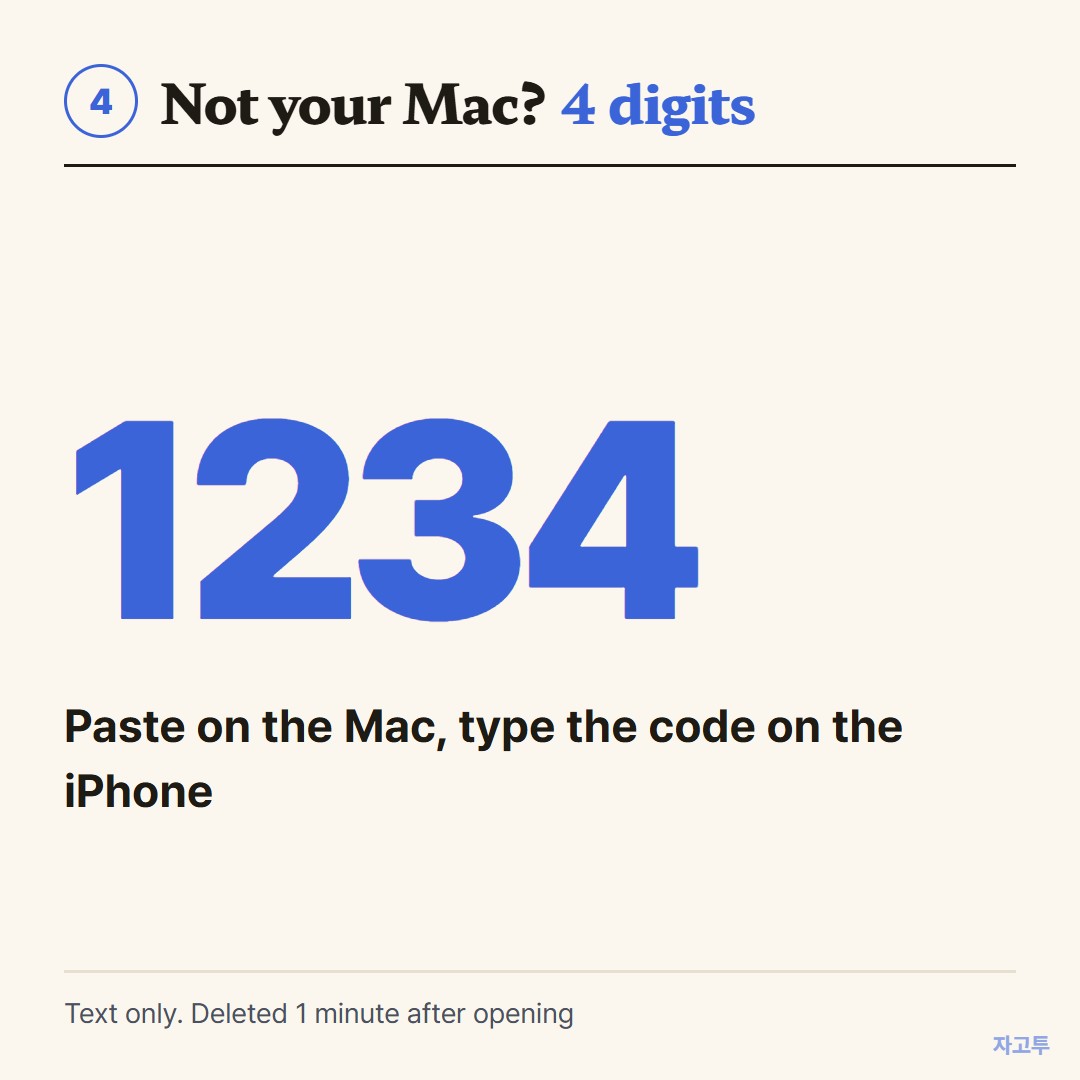
▲ An example code. Each real code is random
Unopened, it is deleted after 1 minute. Opened, it stays 1 minute and then it is gone, and it cannot be reopened.
It is text only, up to 10,000 characters, no photos or files.
There is no in-browser encryption yet, so our server can read the text. Keep work secrets and passwords off it, and follow your company's rules for a work Mac.
When the gap is between Apple and another platform instead, When Universal Clipboard has nothing to sync with covers it.
5. One-line answer
Your own Mac and iPhone: same Apple ID, Handoff, Bluetooth and Wi-Fi on, close together, then Command and C and Paste.
A Mac that is not yours: skip the Apple ID and move the line some other way, such as ZAGO.TO.