How to copy a phone number from an iPhone: a message, a contact, Recents, or your own
2026-10-12
This post contains affiliate links. As an Amazon Associate, ZAGO.TO earns from qualifying purchases.
Your mother calls. "The plumber texted me his number. How do I put it into the other app?" She is reading the screen to you, and you are trying to picture it from across town.
Copying a phone number on an iPhone is one long press almost everywhere.
The trick is knowing where to press, because the menu that appears changes from app to app. This guide walks through each place, in the words you can say over the phone.
Contents
- From a text message
- From a contact card
- From Recents
- Your own number
- Getting the number onto a computer
1. From a text message

▲ Most of the work is telling them exactly where to press
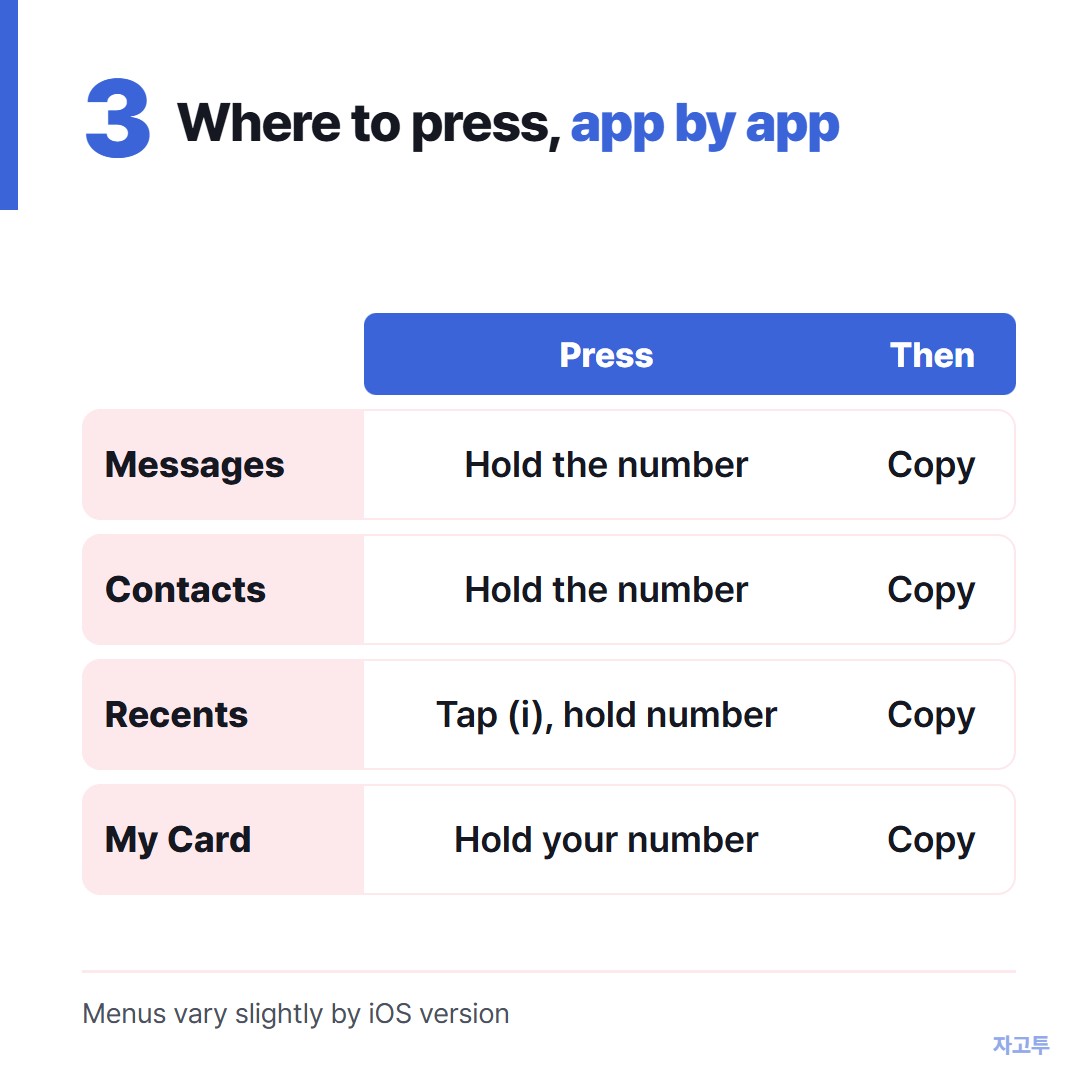
In Messages, the iPhone turns phone numbers into links, usually underlined. Touch and hold the number itself, not the bubble around it.
A small card appears with options such as Call, Send Message, Add to Contacts and Copy. Tap Copy.
If the number is not underlined, the iPhone did not recognise it, often because it has odd spacing.
Then touch and hold the bubble, tap Copy to take the whole message, and paste it where it is needed. The extra words can be deleted after.
What to say: "Press and keep your finger on the number until a little box pops up, then tap Copy."
2. From a contact card
Open Phone, then Contacts, and tap the person. Touch and hold the phone number on their card until Copy appears above it. Tap it.
This is the cleanest copy. A saved number has no stray words around it.
3. From Recents
▲ Recents needs one extra tap before the long press
In Phone, open Recents. Do not tap the name itself, because that calls the number straight away.
Tap the small (i) on the right of the call instead. The details screen opens, and there you touch and hold the number and tap Copy.
What to say: "Find the little i in a circle on the right, not the name."
4. Your own number
People need this more than you would think, for a form or a delivery app. Open Contacts and look at the very top: My Card shows your own number, and you can touch and hold it to copy.
If My Card is missing, Settings has it too. In recent versions of iOS it sits under Settings, then Apps, then Phone, then My Number. On older versions it is Settings, Phone, My Number.
For copy and paste in general: How to copy and paste on an iPhone, step by step for someone new to it.
5. Getting the number onto a computer

▲ Copy on the phone, type four digits on the computer
Sometimes the number has to go into a booking form on a PC, and the phone is an iPhone while the computer runs Windows. There is no shared clipboard between them.
ZAGO.TO works for that one line. Paste the number on the phone, get a 4-digit code, and type that code on the computer to see the text.
It is deleted 1 minute after opening, or after 1 minute if nobody opens it, and it cannot be reopened.
It handles text only, not contact cards or files. There is no in-browser encryption yet, so our server can read what you paste. A plumber's number is fine. Bank details are not.
With a parent, ZAGO.TO also works the other way: you read out four digits, they type them, and the text appears on their phone.
Questions people ask
Can I copy several numbers at once? Not from Contacts. Copy them one at a time, or share the whole contact card from the card's Share Contact option.
The Copy option is not there. Why? The press was probably on the bubble or the name, not the number. Try again with the finger right on the digits.
Will copying the number change anything in my contacts? No. Copying only puts it on the clipboard until you copy something else.