How to AirDrop to Windows: what to use, since AirDrop is Apple only
2026-10-16
This post contains affiliate links. As an Amazon Associate, ZAGO.TO earns from qualifying purchases.

You tap Share on your iPhone, pick AirDrop, and wait for your Windows laptop to appear. It never does.
If you searched how to AirDrop to Windows, the short answer is that AirDrop only talks to Apple devices, and no setting on Windows 10 or Windows 11 changes that.
The good news is that every job AirDrop does has a Windows route. Which one fits depends on what you are sending.
Why the Windows PC never shows up
AirDrop runs on Apple's own wireless handshake between iPhones, iPads and Macs. Windows does not speak it, and Apple has not released AirDrop for Windows.
Apps that call themselves "AirDrop for Windows" are other transfer tools under a borrowed name. Some are fine, but they need an app on both ends, just like the options below.
Pick the route by what you are sending
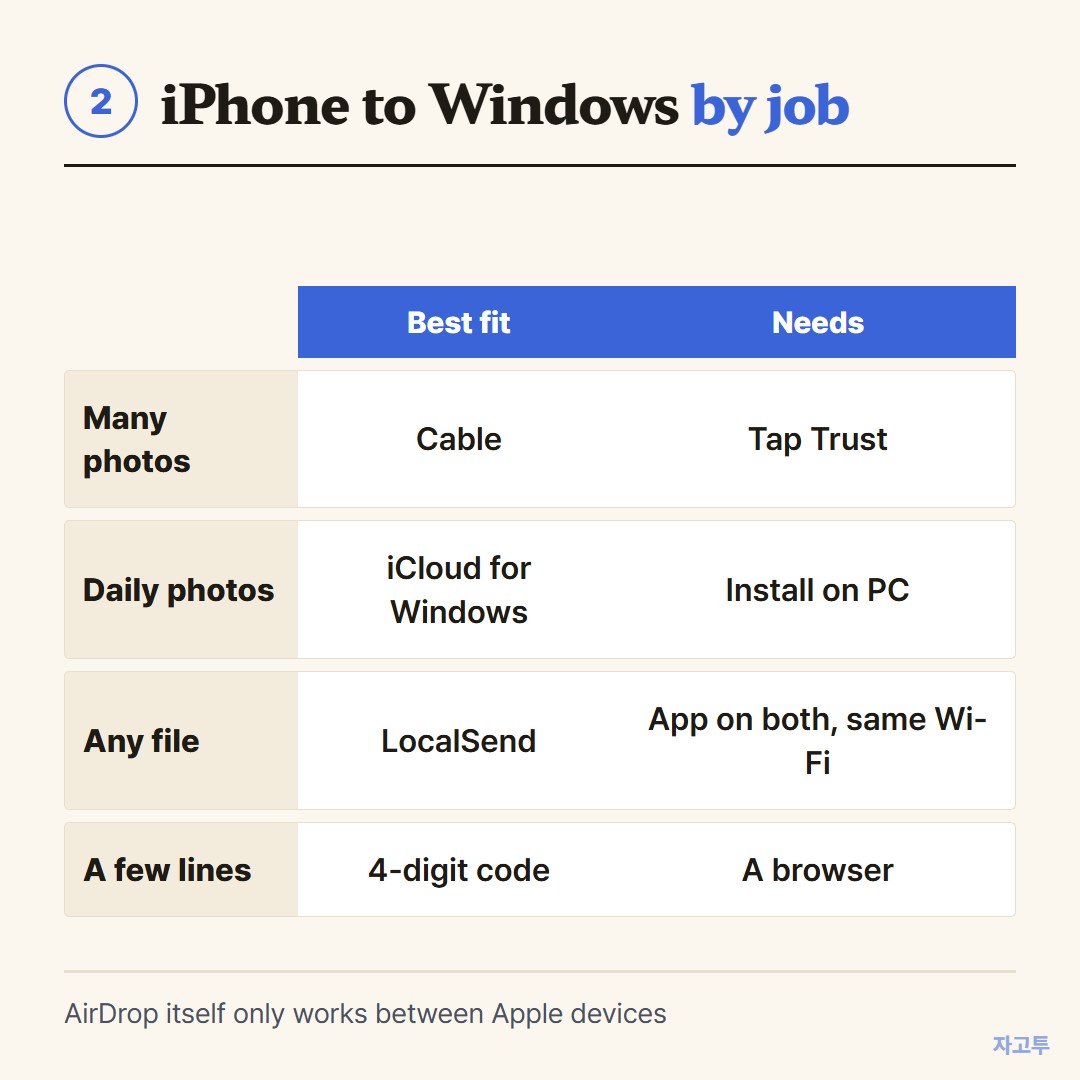
▲ Photos, folders and a line of text each have a better fit
- Photos and videos, many at once: a cable. Plug in, tap Trust on the iPhone, then open Apple iPhone in File Explorer and copy from the DCIM folder.
- Photos, every day, without thinking: iCloud for Windows. Turn on iCloud Photos and they land in File Explorer on their own.
- Any file, same Wi-Fi: LocalSend, a free open-source app for iPhone and Windows. Open it on both, pick the PC, send. This is the closest thing to AirDrop from iPhone to a Windows laptop.
- Messages and notifications: Phone Link on Windows 11 pairs with an iPhone over Bluetooth. Recent versions can also take files from the iPhone share sheet, so check whether yours offers it.
All four are better than anything we offer for files. We do not move files at all.
The case nobody plans for

▲ Sometimes the thing you wanted to AirDrop is one line
A lot of AirDrop attempts are not about photos. It is a tracking number, a Wi-Fi password you just read off a router, a paragraph from Notes, a long link.
Installing an app on a borrowed or work PC for that feels like too much.
ZAGO.TO is made for that small case.
Paste the text on your iPhone, get a 4-digit code, and type the code on zago.to in any browser on the PC. Nothing to install and no account on either side.

▲ The PC only needs a browser and four digits
The limits are real. Unopened text is deleted after 1 minute, and opened text 1 minute after opening, with no way to open it again.
It carries text only, up to 10,000 characters.
There is no in-browser encryption yet, so the server can read the text, and passwords that matter belong in a password manager instead.
If the text is already sitting in Notes, getting text from an iPhone onto a Windows PC without emailing yourself covers more routes.
In short
You cannot AirDrop to Windows, but you rarely need to.
Use a cable or iCloud for photos, LocalSend for files on the same Wi-Fi, Phone Link for messages, and a code from ZAGO.TO when it is only a few lines of text.