How to copy paste from Mac to PC when there is no shared clipboard
2026-10-20
This post contains affiliate links. As an Amazon Associate, ZAGO.TO earns from qualifying purchases.

Why does Cmd+C on the MacBook do nothing for the Windows laptop sitting next to it?
Because the two clipboards have never met.
Here is how to copy paste from Mac to PC in the four situations people actually hit, from the keyboard mix-up to the remote desktop session that refuses to paste.
1. First, the keys are not the same

▲ Two computers, one desk, two clipboards that never talk
Half of the "copy paste between Mac and Windows" searches are really about the keys.
- On a Mac: Cmd+C to copy, Cmd+V to paste, Cmd+Shift+V in many apps to paste without formatting.
- On Windows: Ctrl+C and Ctrl+V. Win+V opens the clipboard history, if you turned it on.
- A Windows keyboard plugged into a Mac: the Windows key acts as Cmd, so copy is Windows key+C, not Ctrl+C.
If you switch machines all day, macOS lets you swap modifier keys under System Settings, Keyboard, Keyboard Shortcuts, Modifier Keys.
Changing it per keyboard keeps your laptop's own keys as they are.
Getting the keys right fixes copying on each machine. It does nothing for moving text between them. That is the real gap.
2. Why Mac to PC copy paste has no built-in path
Apple's Universal Clipboard works between Macs, iPhones and iPads signed in to the same Apple Account. Windows has its own clipboard sync between Windows PCs on one Microsoft account.
Neither one reaches the other side. There is no switch on either computer that joins them.
What happens when Universal Clipboard has no other Apple device to talk to is covered in When Universal Clipboard has nothing to sync with.
So the choice is between three kinds of bridge.
3. Three bridges, and which one fits
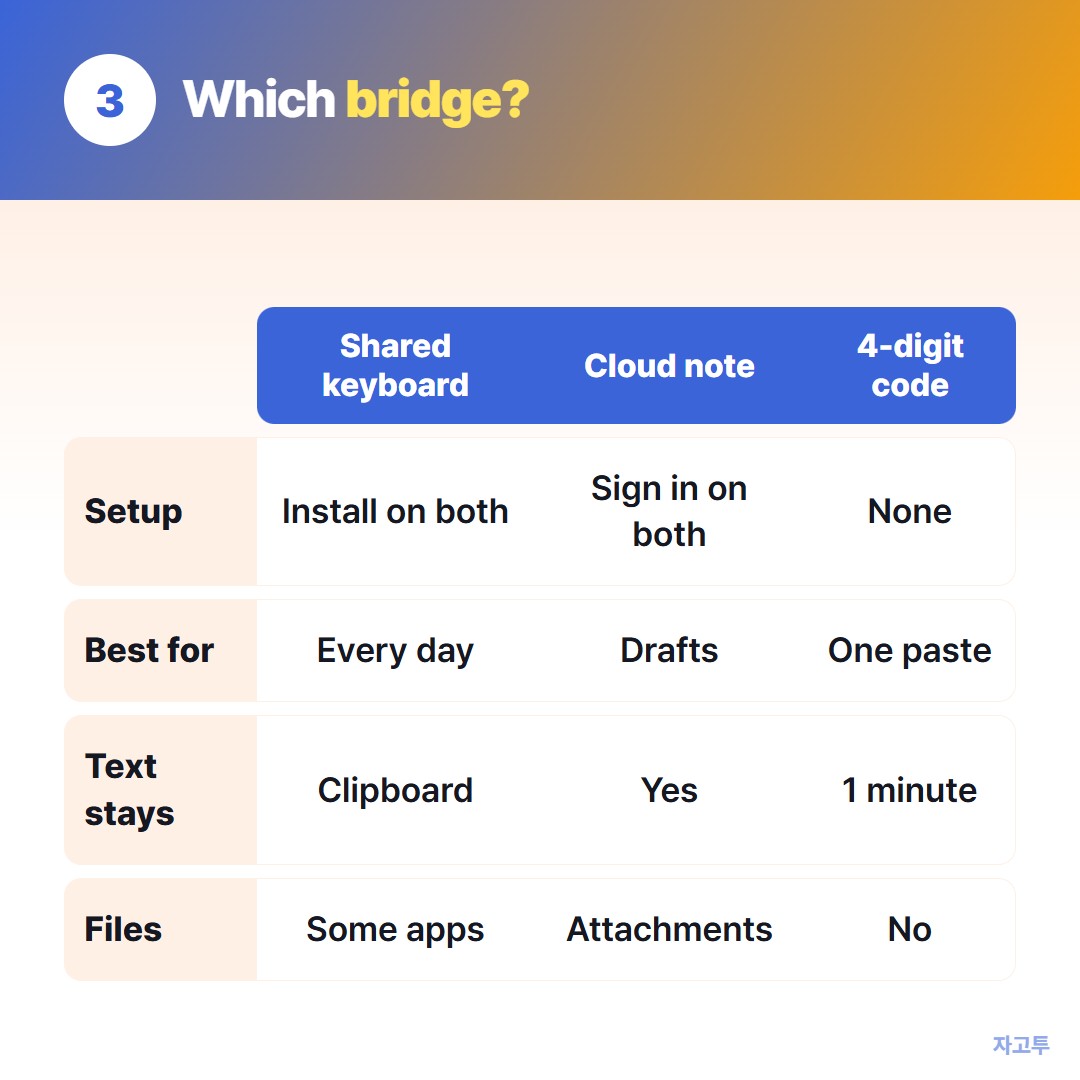
▲ Pick by how often you do it, not by which one sounds cleverest
A shared keyboard and mouse app. Tools like Synergy, Input Leap or ShareMouse let one keyboard drive both machines, and they share the clipboard as a side effect.
If you sit at both computers every day, this is the right answer, and it is worth the setup.
A cloud note or document. Apple Notes at icloud.com, Google Keep, OneNote, or a Google Doc open on both screens. Type or paste on one, refresh on the other.
It is slower, but the text stays, which is good for drafts you will keep editing.
A one-time code. For a single paste, a whole installation is a lot.
ZAGO.TO works in the browser on both machines. Paste on the Mac, get a 4-digit code, type it at zago.to on the PC, and copy the text there.
It has limits worth knowing. Text only, up to 10,000 characters, no files. Unopened text is deleted after 1 minute, and opened text 1 minute after it is opened, so it cannot be opened again.
There is no in-browser encryption yet, so our server can read what you send. Keep passwords and keys out of it.
4. Mac and Windows over remote desktop
The other common case: you are on a Mac, connected to a Windows PC through Microsoft's remote desktop app, and paste silently fails.
- Check the connection setting. In the app, edit the saved PC, open Devices & Audio, and make sure Clipboard is ticked. It is set per connection.
- Reconnect. The clipboard is agreed when the session starts, so changing it mid session does nothing.
- Use Cmd on the Mac side and Ctrl inside Windows. Inside the remote window, Windows expects Ctrl+V, though the app usually maps Cmd for you.
- Ask whether it is blocked. Company PCs often turn off clipboard redirection on purpose. If it is greyed out, that is a policy, and it is not yours to work around.
A virtual machine on the Mac has its own version of this problem. The fixes for that are in VirtualBox shared clipboard not working?
One-line answer
Every day at both machines, use a shared keyboard app. Drafts you keep, use a cloud note. One paragraph, right now, 4 digits on ZAGO.TO and it is gone a minute later.
 Days until Christmas
 Word Counter
 Age Calculator
 Wheel Spinner