Chrome Remote Desktop copy paste: the clipboard setting hiding in the side panel
2026-10-12
This post contains affiliate links. As an Amazon Associate, ZAGO.TO earns from qualifying purchases.
Short answer: in the side panel, turn on clipboard synchronization, and allow the clipboard prompt in your browser. Most Chrome Remote Desktop copy paste problems end there.
The rest of this page covers the three cases where that is not enough: text that only crosses one way, a Mac keyboard on a Windows host, and files.
1. Find the setting that controls the clipboard
▲ The clipboard option sits inside the session, not on the start page
While you are connected, move the mouse to the right edge of the window. A small arrow tab appears. Click it and the side panel slides out.
Look under the session options for Enable clipboard synchronization. If it is unchecked, nothing you copy on either side reaches the other.
Check it, then copy something fresh. Text copied before the switch does not count.
The first time, Chrome also asks whether the site may see text and images copied to the clipboard. Choose Allow.
If you blocked it earlier, the lock icon at the left of the address bar opens the site settings where Clipboard can be switched back.
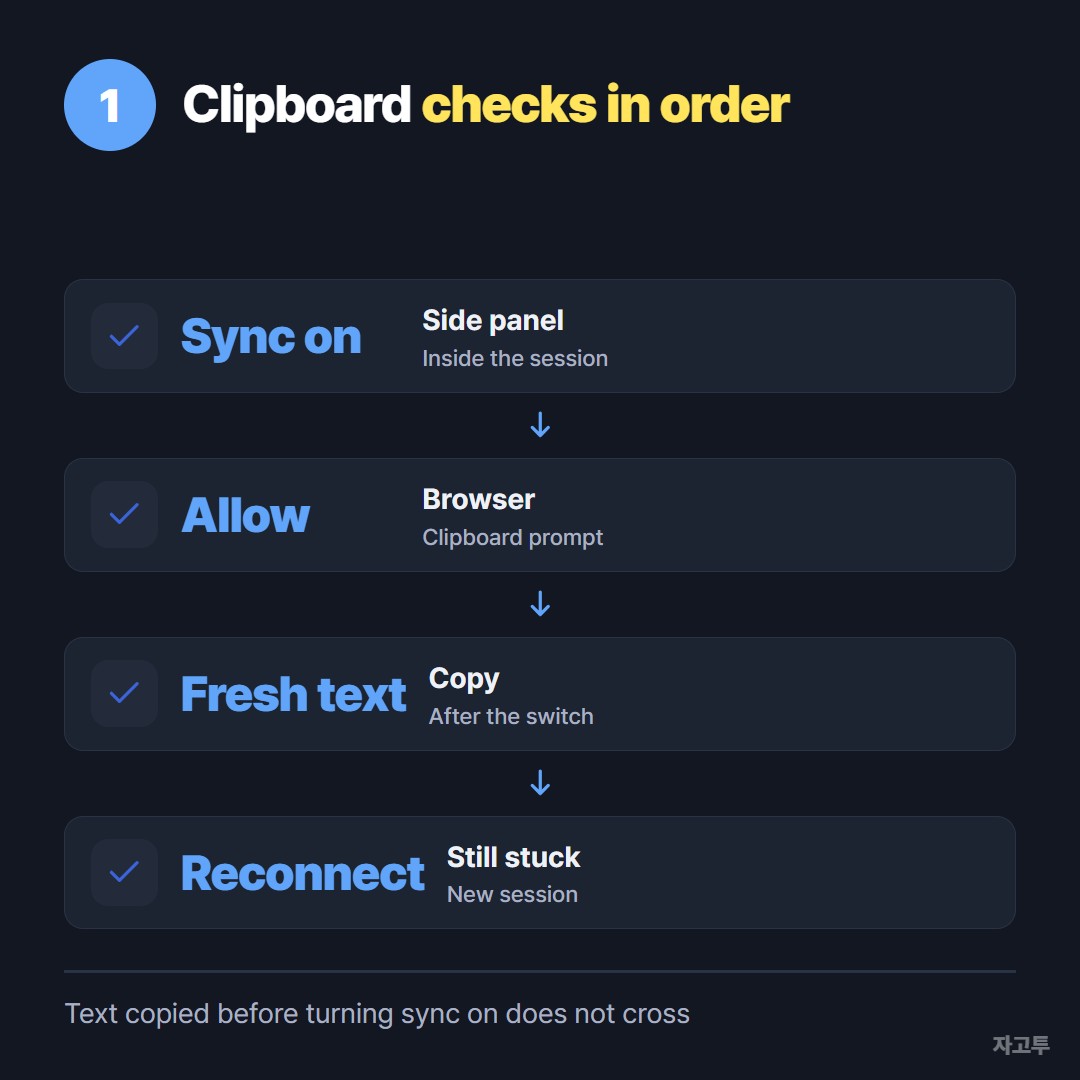
▲ Setting, permission, fresh copy, then reconnect
2. When it works only one way
A common report is that paste works from your computer into the remote one, but not back.
The sync from the remote side runs when the browser tab has focus, so click inside your own window once after copying remotely, then paste.
If it still sticks, disconnect and reconnect.
A new session resets the sync faster than any setting. Updating Chrome Remote Desktop on the host, the next time you are at that machine, fixes the rest of the stubborn cases.
3. Mac keys and files
On a Mac connected to a Windows host, Command+C may not reach Windows as Ctrl+C.
The side panel has a key mapping option for this. Without it, use Ctrl+C and Ctrl+V inside the remote window and Command inside your own.
Files are not clipboard items. The side panel has separate Upload file and Download file buttons for that.
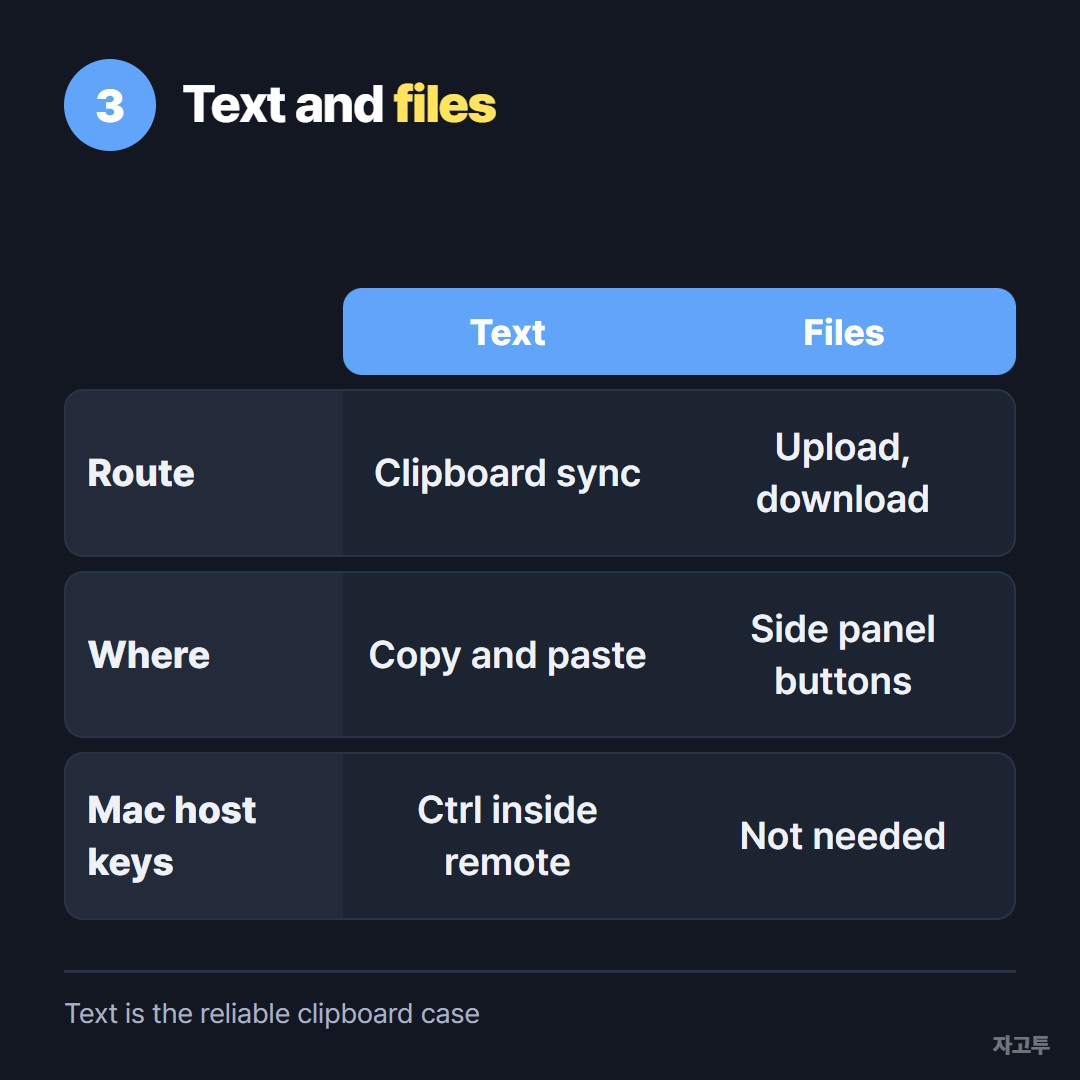
▲ Text rides the clipboard, files take the side panel buttons
If you are using Microsoft's Remote Desktop instead, the checks differ, and Copy paste not working in Remote Desktop? lists them in order.
4. When the clipboard will not cooperate
Sometimes you just need one line from the remote screen.
Open ZAGO.TO in the remote machine's browser, paste the text, and read the 4-digit code off the screen. Type the code on your own device and the text appears.
ZAGO.TO is deliberately brief: unopened text is deleted after 1 minute, opened text 1 minute later, and it cannot be reopened.
Text only, up to 10,000 characters, no files. There is no in-browser encryption yet, so our server can read what you send.
Questions people ask
Does it work in the phone app? Clipboard sync is far less dependable there than in a desktop browser.
Can I copy images? Sometimes, depending on the browser. Text is the reliable case.
Does the remote computer need to be on? Yes, and awake, with the host running.