LinkedIn post character limit: 3,000 in the box, but the "see more" cut comes much sooner
2026-10-31
This post contains affiliate links. As an Amazon Associate, ZAGO.TO earns from qualifying purchases.

How much can you actually write in a LinkedIn post before it stops letting you type?
The LinkedIn post character limit is 3,000 characters, spaces and line breaks included. That number comes from LinkedIn Help, and it has not changed in 2026.
But most of your readers never see character 3,000. They see the first two or three lines, then a "...see more" link. This guide covers both numbers, and the other limits people mix up with them.
Contents
- The limits side by side
- Where "see more" cuts in
- What eats characters faster than you think
- Drafting a post that fits
- Quick answers
1. The limits side by side
| Where you are writing | Limit | |---|---| | A post (personal or company page) | 3,000 characters | | A comment | about 1,250 characters | | An article body | about 125,000 characters | | Before "see more" in the feed | no fixed number, about 2 to 3 lines |
The post limit is the one LinkedIn states plainly. The comment figure is the one most users report when the box stops them, so treat it as a working number rather than a promise.
If a post wants to be longer than 3,000 characters, LinkedIn's own advice is to publish it as an article instead.

▲ 3,000 is the ceiling, not the target
2. Where "see more" cuts in
The LinkedIn character limit before see more is not a fixed count. The feed folds by lines, and how many characters fit on those lines depends on the screen.
On a wide desktop feed, the fold usually lands somewhere around 200 characters. On a phone, it comes sooner.
And every line break you add uses up a whole line, so a post that opens with three one-word lines can fold after a dozen characters.
Your opening line is the whole post for most people. Write it so it makes sense even if nothing after it gets read.
A simple test: read only your first 150 characters out loud. If that does not give someone a reason to tap, the rest of the 3,000 will not help.
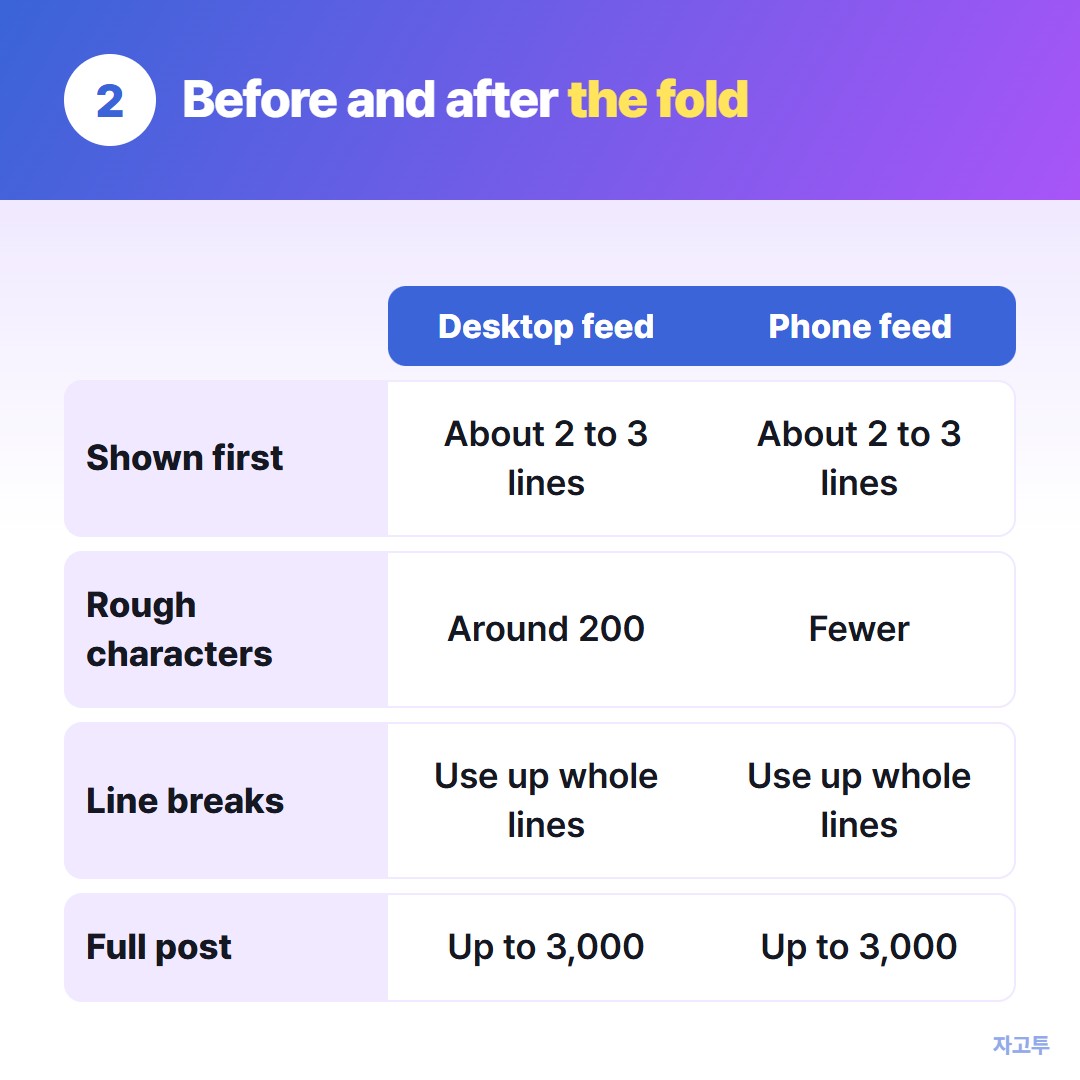
▲ The fold moves with screen width and line breaks
3. What eats characters faster than you think
- Line breaks. Each one counts as a character, and blank lines between paragraphs count too
- Links. A pasted URL counts in full. Long tracking links can take 150 characters on their own
- Hashtags and mentions. Each is counted letter by letter, including the # sign
- Emoji. Some may take more than one character in the box, so leave a margin
- "Bold" text from generators. Those tools swap letters for special symbols. They can count differently, and screen readers may read them oddly
Leaving 100 characters of room at the end saves you from cutting a sentence when you add one more hashtag.
4. Drafting a post that fits
The LinkedIn box is a bad place to draft. It is small, and it does not show a running count until you are close to the limit.
Draft in the Word Counter on ZAGO.TO instead. It shows characters, words and reading time as you type.
The draft also autosaves on your device, so a closed tab does not cost you the post.
Two honest limits. It counts every character as one, so it will not tell you if LinkedIn treats an emoji differently.
It also does not show where the "see more" fold will land, because that depends on the reader's screen.
If you also post the same idea to X, the tweet character guide explains why the same text counts differently there.
For SMS and meta descriptions, see the character counter limits guide.
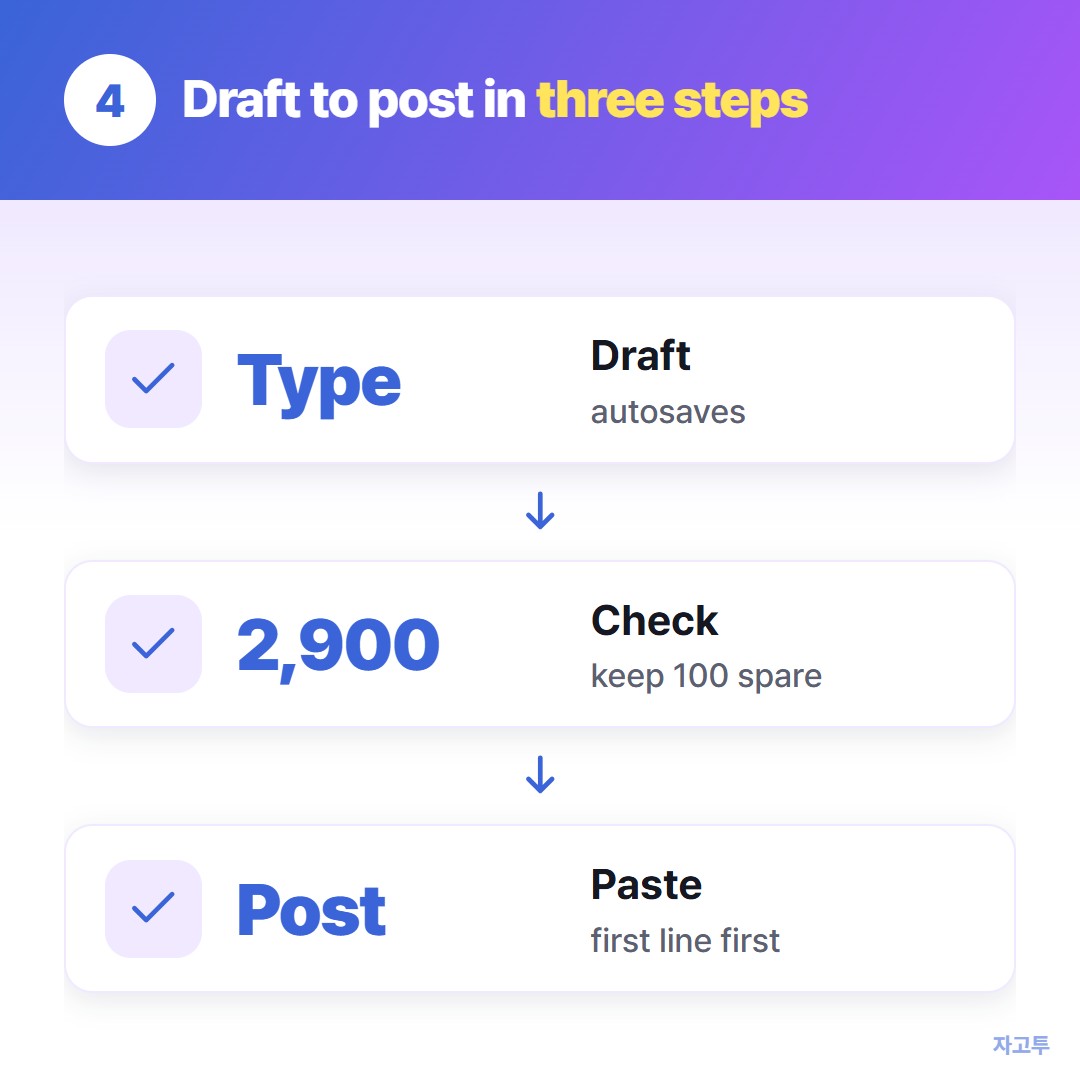
▲ Draft, check the count, then paste
5. Quick answers
Does the 3,000 include spaces? Yes. Spaces, line breaks and punctuation all count.
Is the limit the same for company pages? Yes, posts from pages have the same 3,000-character limit.
Can I post more than 3,000 characters? Not in one post. Split it into a post and a comment, or publish an article.
Paste your next draft into the Word Counter before it goes into LinkedIn. More free tools: QR Code Generator · Days Until
 Days until Christmas
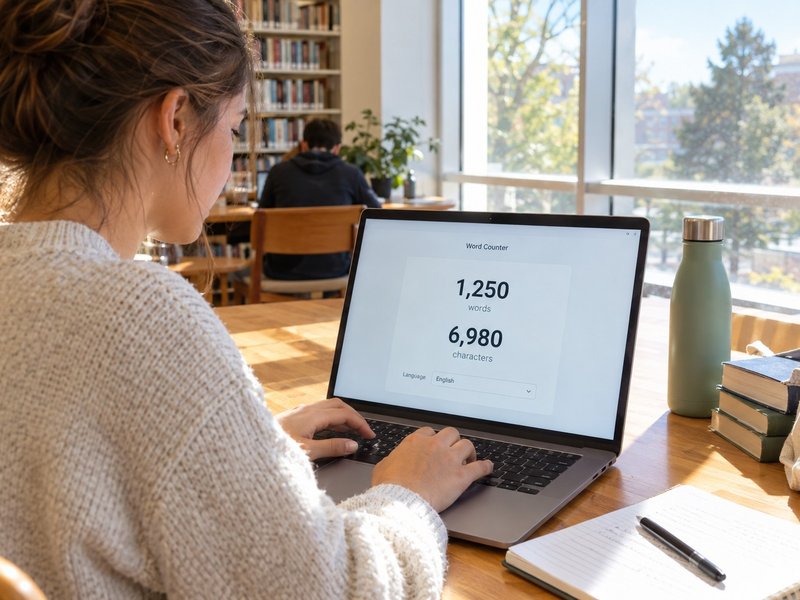 Word Counter
 Age Calculator
 Wheel Spinner