Hyper-V copy paste not working? Check enhanced session first
2026-10-07
This post contains affiliate links. As an Amazon Associate, ZAGO.TO earns from qualifying purchases.
Short version: Hyper-V only shares the clipboard in an enhanced session. If the toolbar button for it is grey, or you are in a basic session, Ctrl+V into the VM will do nothing.
You copied a command on the host, clicked into the VM window and pressed Ctrl+V. Nothing. No error, no text, just a blinking cursor.
When Hyper-V copy paste is not working, the cause is almost always the session type, not the clipboard itself.
Here is how the two sessions differ, what to switch on, and how to move one line while it is still broken.
1. Basic session vs enhanced session
▲ The VM window looks the same in both sessions. The clipboard does not behave the same
Hyper-V's Virtual Machine Connection window can run in two modes.
A basic session is like looking at the VM's screen through glass. You see it and you can type into it, but nothing else crosses over: no clipboard, no drives, no audio.
An enhanced session connects through a Remote Desktop channel underneath. That channel is what carries the clipboard, so copy and paste works both ways.
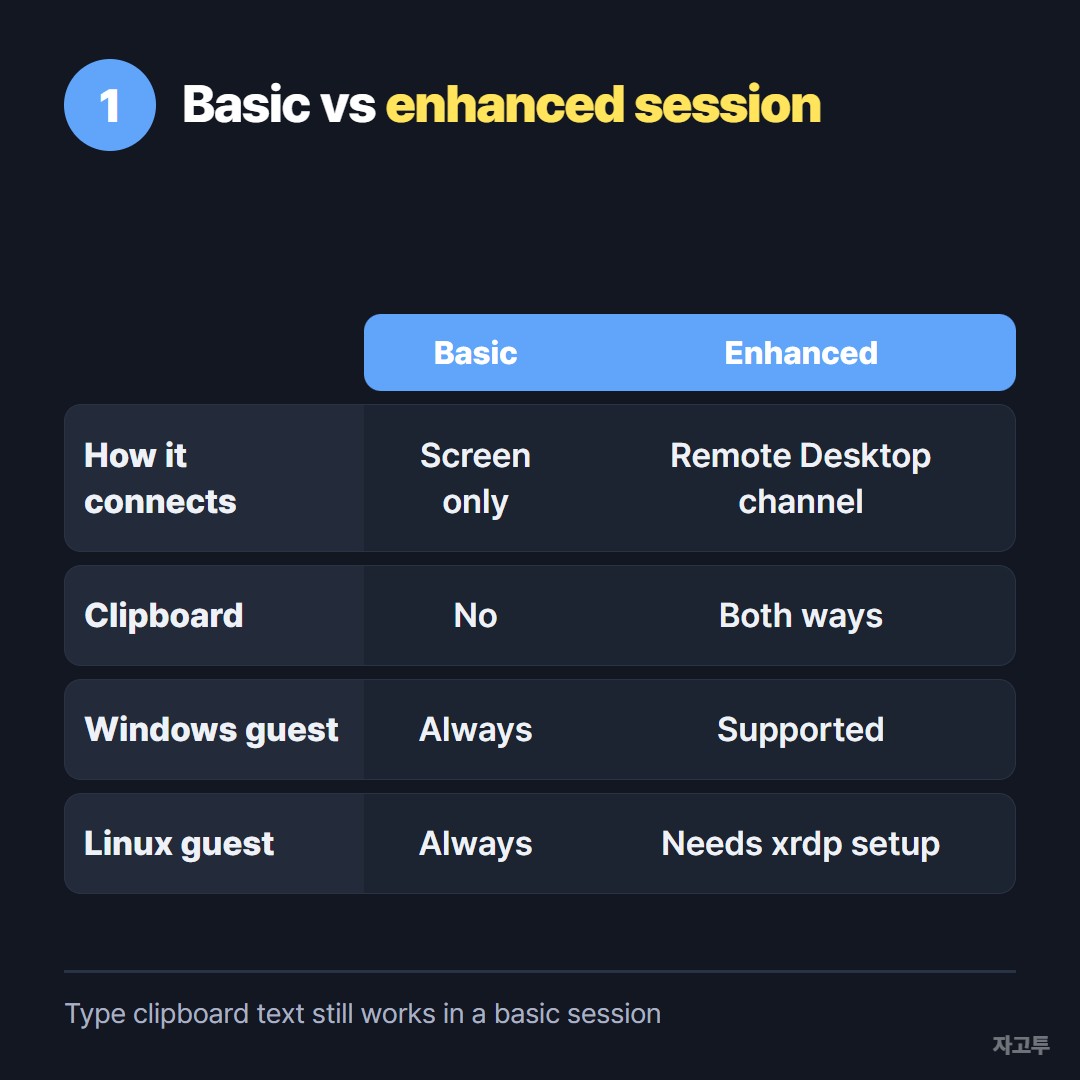
▲ Clipboard sharing only exists on the right-hand side
So the real question is not "why is the clipboard broken" but "why am I in a basic session".
2. Turning on Hyper-V enhanced session
Work down this list. Most people are fixed by the second or third item.
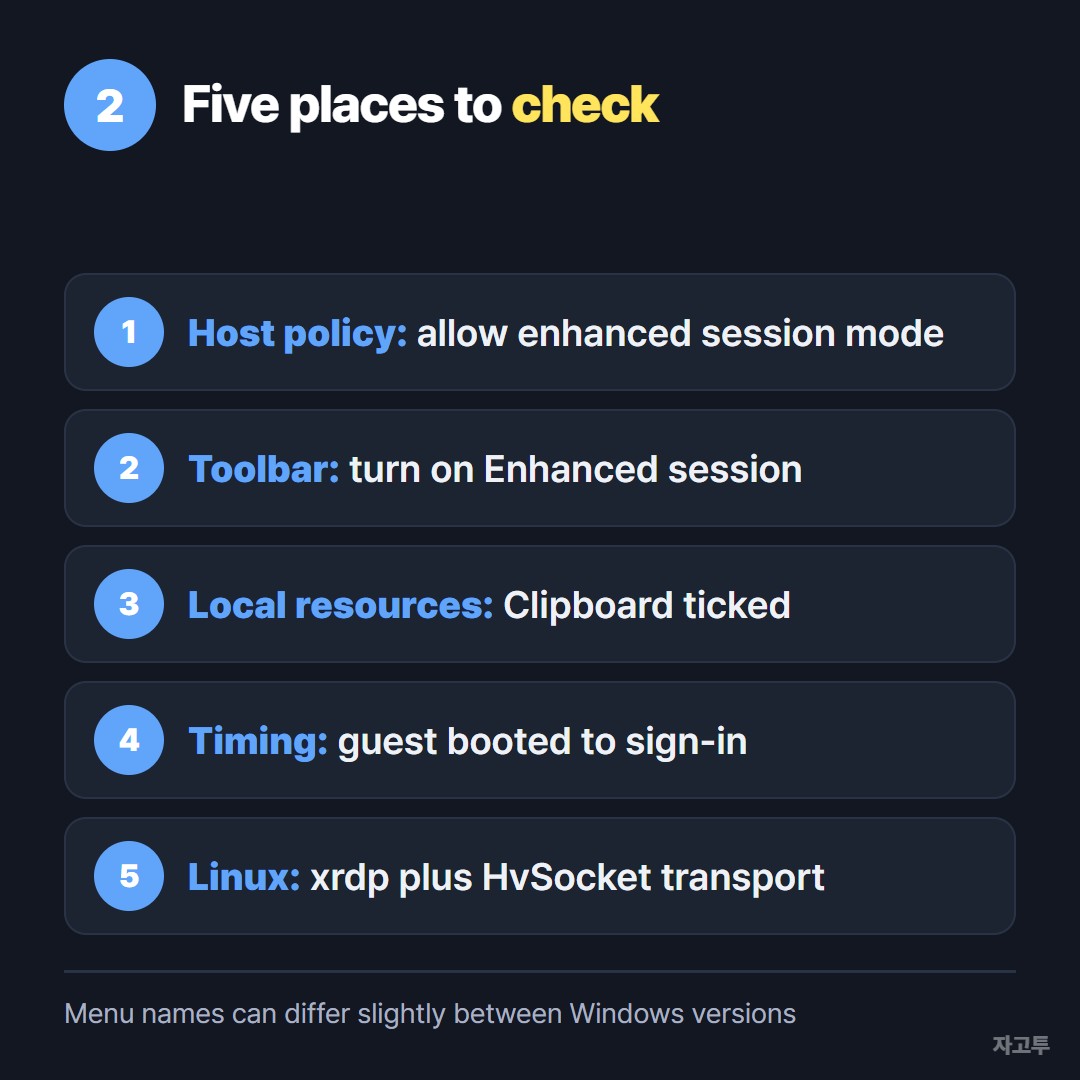
▲ From the host setting down to the guest
Host policy. In Hyper-V Manager, open Hyper-V Settings. Under Server, set Enhanced Session Mode Policy to allow it. Under User, tick Use enhanced session mode.
The toolbar button. In the VM window, the View menu has an Enhanced session toggle, and there is a matching toolbar icon. Click it while the guest is running.
Clipboard is ticked. When the enhanced session starts, Hyper-V shows a display dialog. Open Show Options, then Local Resources, and make sure Clipboard is checked.
Sign in properly. Enhanced session usually only becomes available after the guest has booted to its sign-in screen. Waiting a few seconds after boot and then toggling often helps.
Linux guests need extra setup. This is where the button stays grey. Windows guests support enhanced session out of the box.
Many Linux installs do not, because they need an RDP server (xrdp) set up to listen on the Hyper-V socket.
Ubuntu images from Hyper-V Quick Create come prepared for this. A plain Ubuntu install usually needs xrdp configured inside the guest.
On the host, set the VM's transport to HvSocket with `Set-VM -VMName "name" -EnhancedSessionTransportType HvSocket` in an admin PowerShell.
Distribution versions change, so follow your distro's current notes for the guest part.
3. While it is still broken: moving one line
Sometimes you just need one command inside the VM now, and the setup can wait.
Type clipboard text. In a basic session, the VM window has a Clipboard menu with Type clipboard text. It types your host clipboard into the guest as keystrokes.
This works even in a basic session, though long text and non-US keyboard layouts can come out garbled.
A browser inside the VM. If the guest has a browser and internet access, ZAGO.TO moves a short piece of text with four digits.
Paste the command on the host, get a 4-digit code, open zago.to inside the VM and type the code.
ZAGO.TO is text only, up to 10,000 characters. If nobody opens it, it is deleted after 1 minute. Once opened, it is shown for 1 minute and then deleted.
Do not send passwords, SSH private keys or API tokens this way. There is no in-browser protection yet, so our server can read the text while it is held, for up to two minutes.
More on that in What our server can see, and the full list of things we would not move is in What never to move.
For copying files rather than text, Hyper-V has `Copy-VMFile` in PowerShell, which needs the Guest Service Interface integration service turned on for the VM.
Quick answers
Why is the enhanced session button grey? Either the host policy is off, the guest has not finished booting, or the guest (often Linux) has no RDP server set up for it.
Does copy and paste work in a basic session? Not normally. The Type clipboard text menu item is the one exception, and it types rather than pastes.
Is this the same problem as Remote Desktop? Related, since enhanced session uses RDP underneath, but the fixes live in Hyper-V settings rather than in the Remote Desktop client.
Can I paste into a Linux terminal with Ctrl+V? Most Linux terminals use Ctrl+Shift+V. Plain Ctrl+V failing in a terminal is not always a Hyper-V problem.